
Option 1: Drag the card to Done
- Find the task card on the Kanban board.
- Click and hold, then drag it into the Done column.
- Drop it. The status change applies instantly; if the save fails, the card rolls back with a toast so nothing is silently lost.
The Done column's count pill updates, and the card leaves To Do or In Progress.
Option 2: Set the status in the task dialog
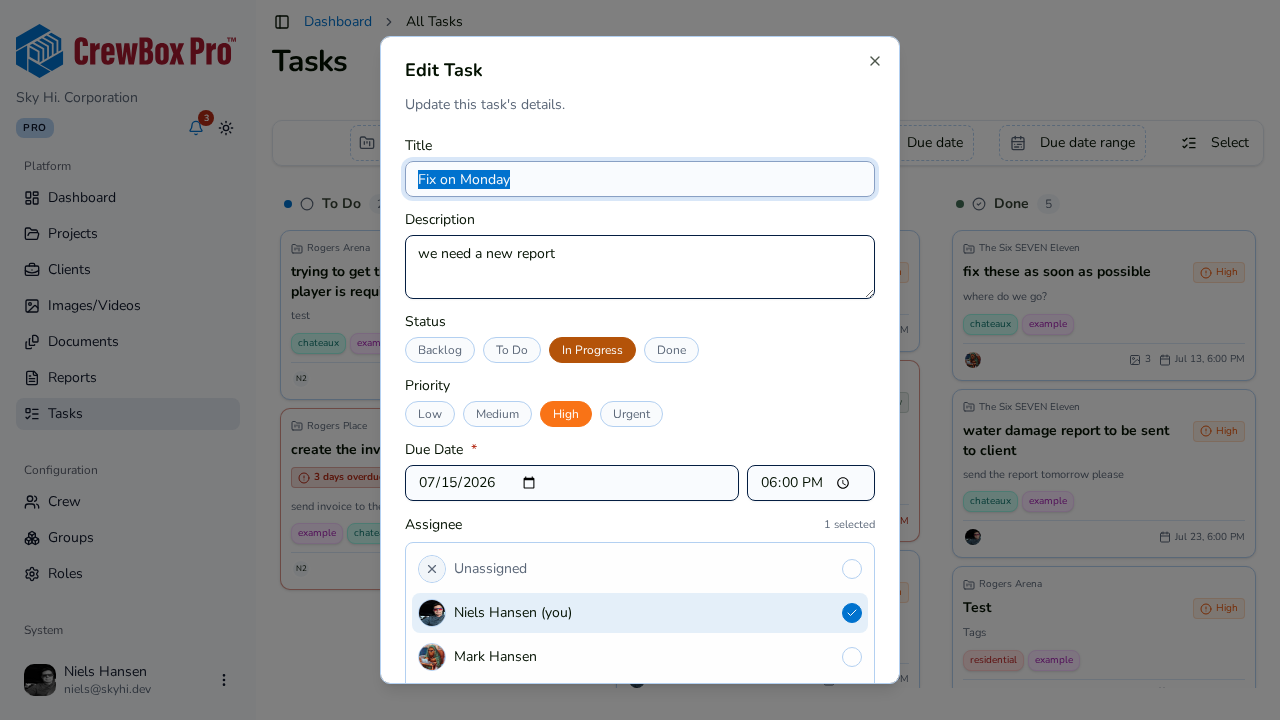
- Click the task card to open the task editor dialog.
- Click the Done status pill.
- Save.
Use this route when you're already editing the task — say, adding a closing note to the description or unlinking attachments.
What completion affects
- The dashboard's Task Health widget counts Done tasks in its status donut and tracks completed-this-period stats.
- The Status filter on any board can show or hide Done work.
- Completing a task clears its overdue badge from the board.
Reopen a task
Changed your mind? Drag the card back out of Done into To Do or In Progress, or set the status pill in the dialog.