
From the document viewer
- Open the document in the full-screen viewer.
- In the sidebar, click Create Task from Document.
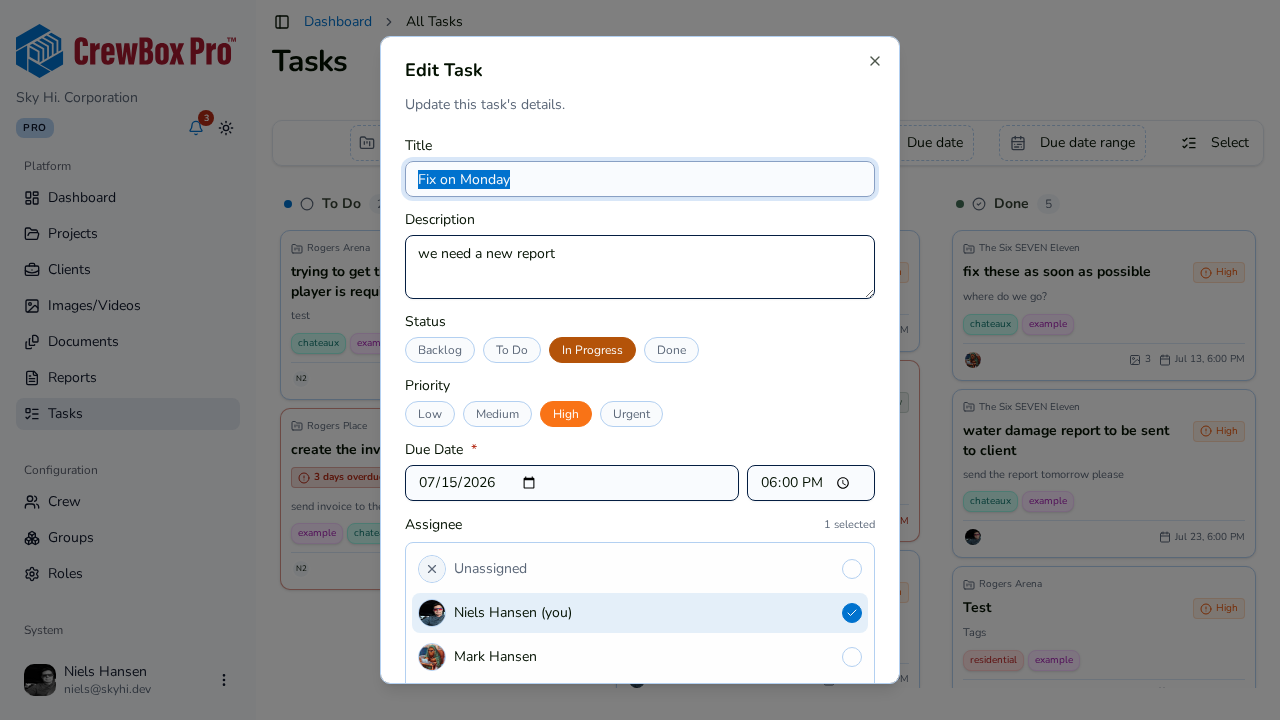
- The task dialog opens with the document pre-attached — fill in the rest:
- Title (required) and description.
- Status and Priority pills.
- Due date and time (required).
- An Assignee from the crew picker.
- Tags, if you use them.
- Save the task. It lands on the project's Kanban board with the document linked.
From the document card
You can also click Create a Task in a document's action menu in the Documents tab — same dialog, same pre-attached document.
From a selection
In Select mode, choose one or more documents and click Create New Task to attach the whole selection to a fresh task. The selection must be within one project.
What the link gets you
- The document card shows a linked-task count.
- The viewer sidebar's Linked Tasks accordion lists every task the file is attached to.
- Anyone opening the task can click through to the document viewer from the task's attachments.