
What Works with No Connection
- Photo and video capture — full camera, tags, notes, GPS included.
- Creating projects — saved on-device with a "saved offline" confirmation.
- Comments — written and queued locally.
- Browsing — projects, photos, and details you've already loaded come from the on-device cache; cached tags stay available.
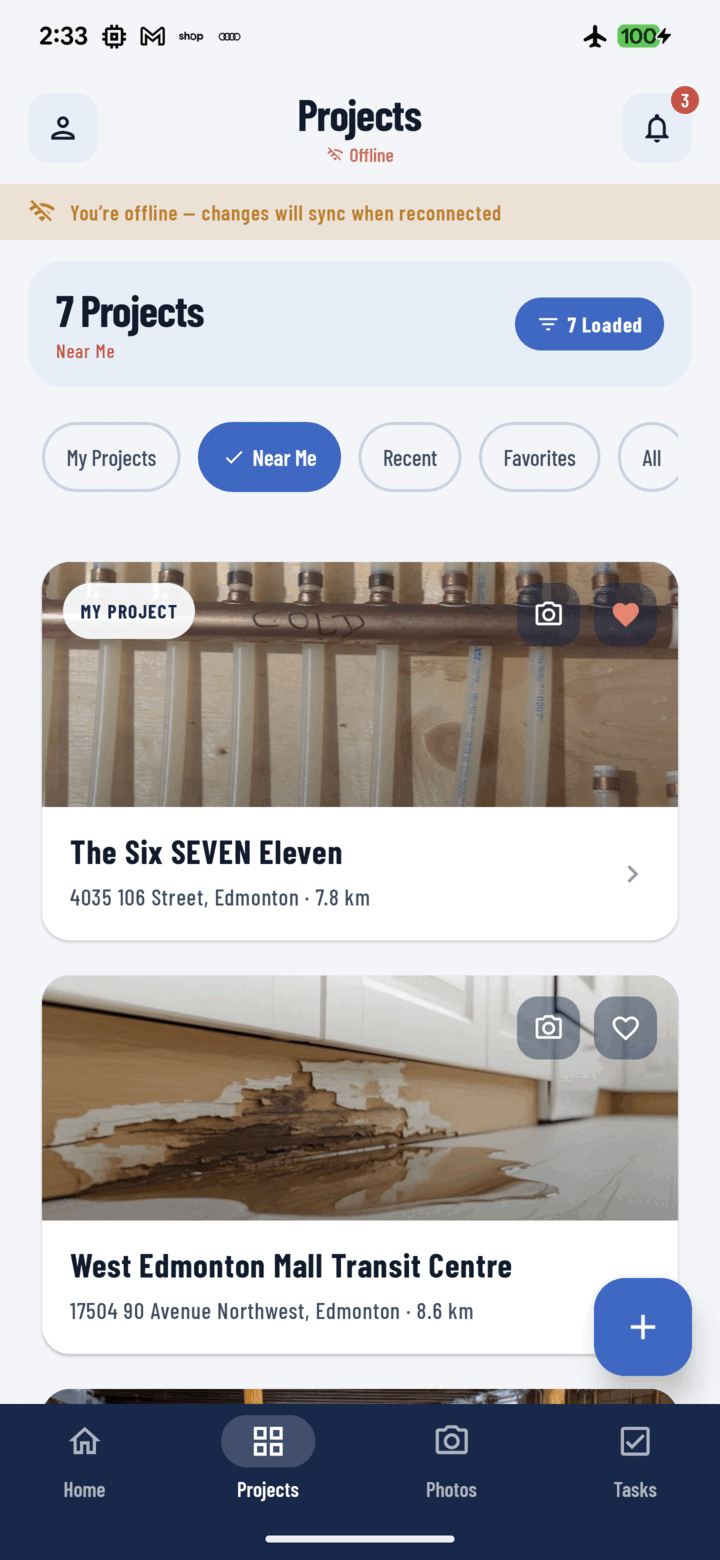
When you lose signal, an offline banner appears and CrewBox keeps working — changes sync automatically once you reconnect.
An offline banner appears whenever connectivity drops, so you always know your mode.
What Happens When You're Back Online
Everything syncs automatically, in the right order:
- Offline projects are created on the server first.
- Their queued photos and videos upload (two at a time) and are attached to the real project.
- Queued comments and annotations post to the now-uploaded media.
Failed or interrupted uploads reset and retry automatically on reconnect and on app start.
Watching the Queue
Tap the upload progress strip under the header (or a project's pending badge) to open the Upload Queue:
- Offline Projects — syncing / waiting / failed
- Uploading — in flight now
- Pending — drafts waiting to send
- Failed — with the error for each item
Use Retry failed or Clear failed in the top bar, or discard individual items (with confirmation).
Tips
- Send your tray (Upload All) whenever you catch a bar of signal — the queue handles the rest.
- Don't clear the app's storage/cache from system settings while uploads are pending; use the in-app Clear project cache instead, which protects unsent work.
Related
- Capture photos in the field
- Create a project
- FAQ: Offline & Sync