
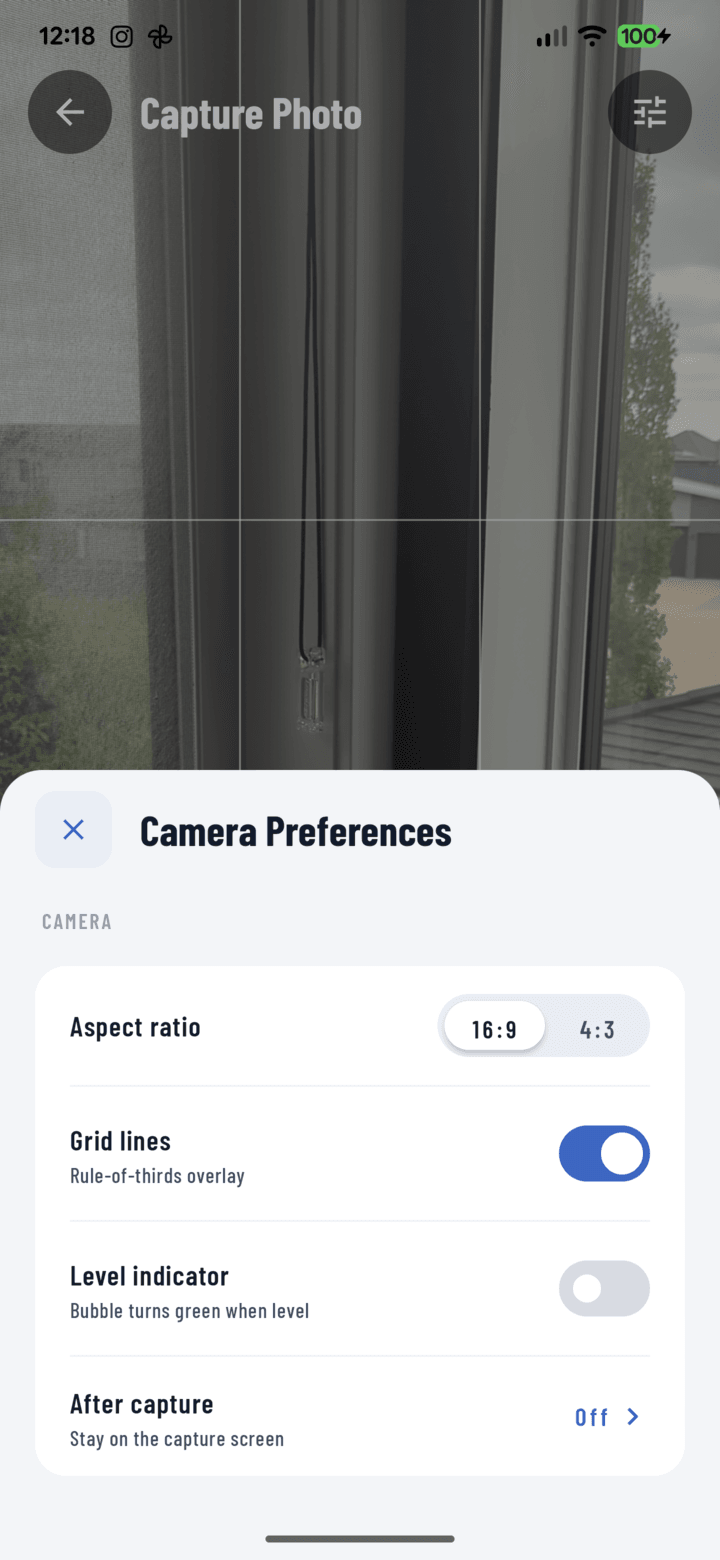
The Camera Preferences sheet — every capture setting in one place.
Opening Camera Settings
In the camera, tap the settings control — the settings sheet slides up.
Every Setting
| Setting | Options | What it does |
|---|---|---|
| Aspect ratio | 16:9 / 4:3 | Wide for site overviews and landscapes; 4:3 for detail shots and print-friendly framing |
| Grid | on/off | Rule-of-thirds overlay for composition |
| Level indicator | on/off | An accelerometer bubble-level HUD — shows when the phone is straight, so horizons and framing lines don't tilt |
| After capture | Off / Annotate / Notes | What happens the moment you take a shot (below) |
The After-Capture Modes
- Off — keep shooting; captures pile into the tray. The high-volume default.
- Annotate — the annotation editor opens on every shot — for inspection runs where each photo gets marked up.
- Notes — the photo tray opens so you add notes and adjust tags while the context is fresh.
Recommendation by Workflow
- Progress documentation: Off + grid + level — speed and straight shots.
- Punch-list walk: Annotate — circle it the second you shoot it.
- Detailed survey: Notes — the note you write now beats the one you reconstruct tonight.
Settings persist across sessions — set them for the day's job type and shoot.