
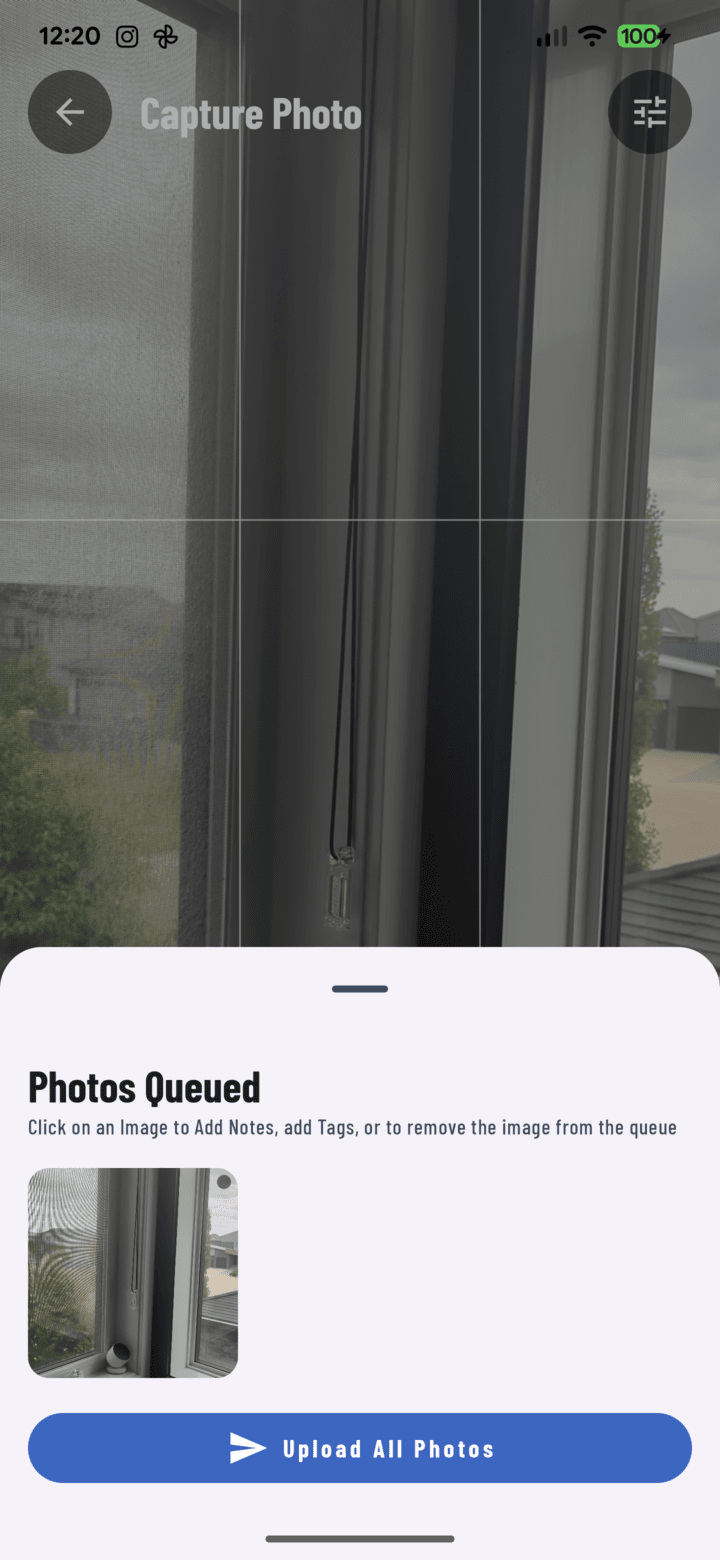
The Photos Queued sheet — every pending capture, waiting for review before upload.
What the Tray Is
Shoot freely; each photo drops into the tray (the badge on the camera shows the count). Nothing uploads until you send — so you can shoot forty frames, then curate.
Working the Tray
- Tap the tray badge in the camera (or a project's pending-upload badge).
- For each queued photo you can:
• Edit notes — describe what the shot shows while you still remember
• Adjust tags — add or correct the labels it captured with
• Delete — drop the blurry ones and duplicates - Tap Upload All (or Send from the camera) — the tray empties into the background upload queue.
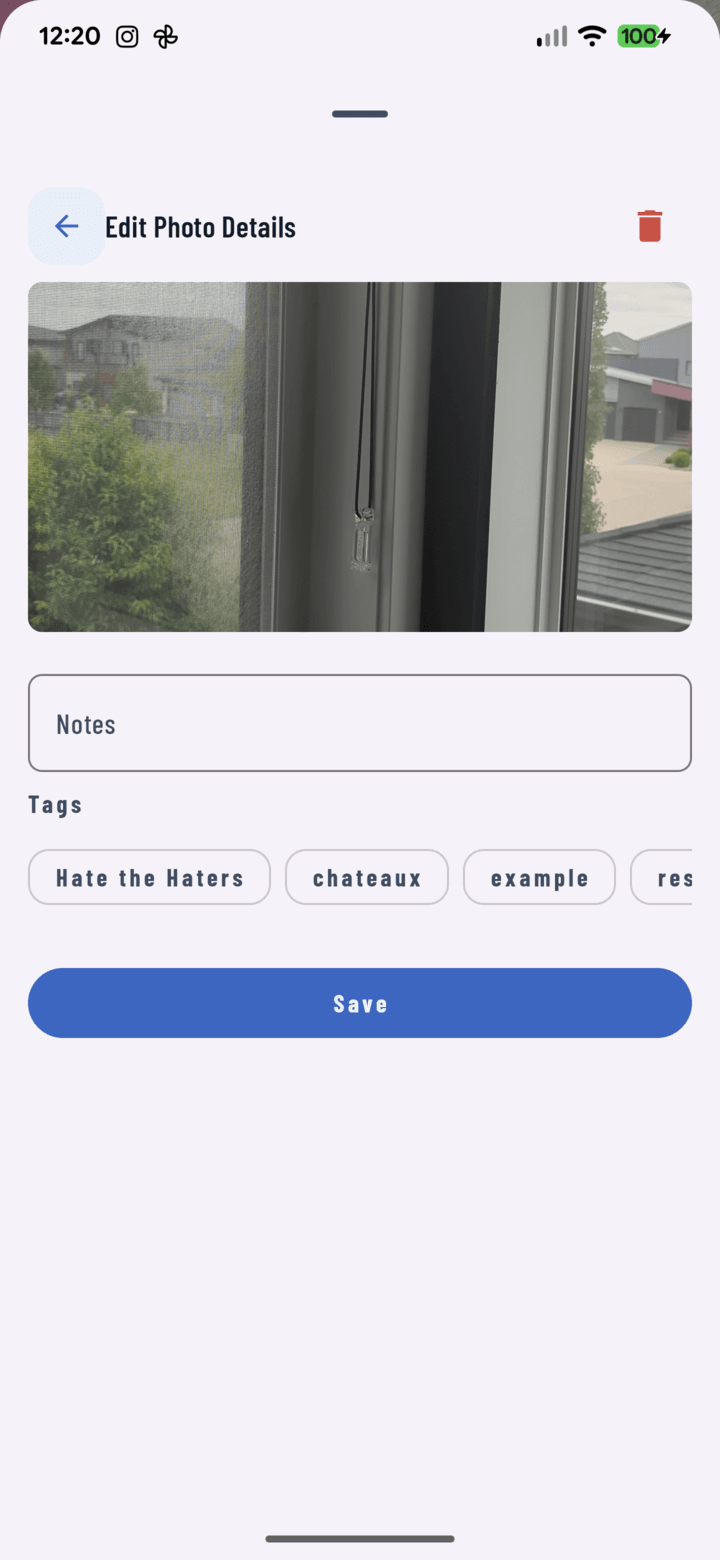
Edit Photo Details — add notes and adjust tags on each queued photo before it uploads.
Tray + After-Capture "Notes" Mode
Set After capture: Notes in camera settings and the tray opens automatically after every shot — annotate the moment, not the memory.
Offline Behavior
The tray is local-first: with no signal, everything waits safely — notes, tags, GPS included — and uploads automatically when connectivity returns (offline guide). Watch progress in the upload queue.