
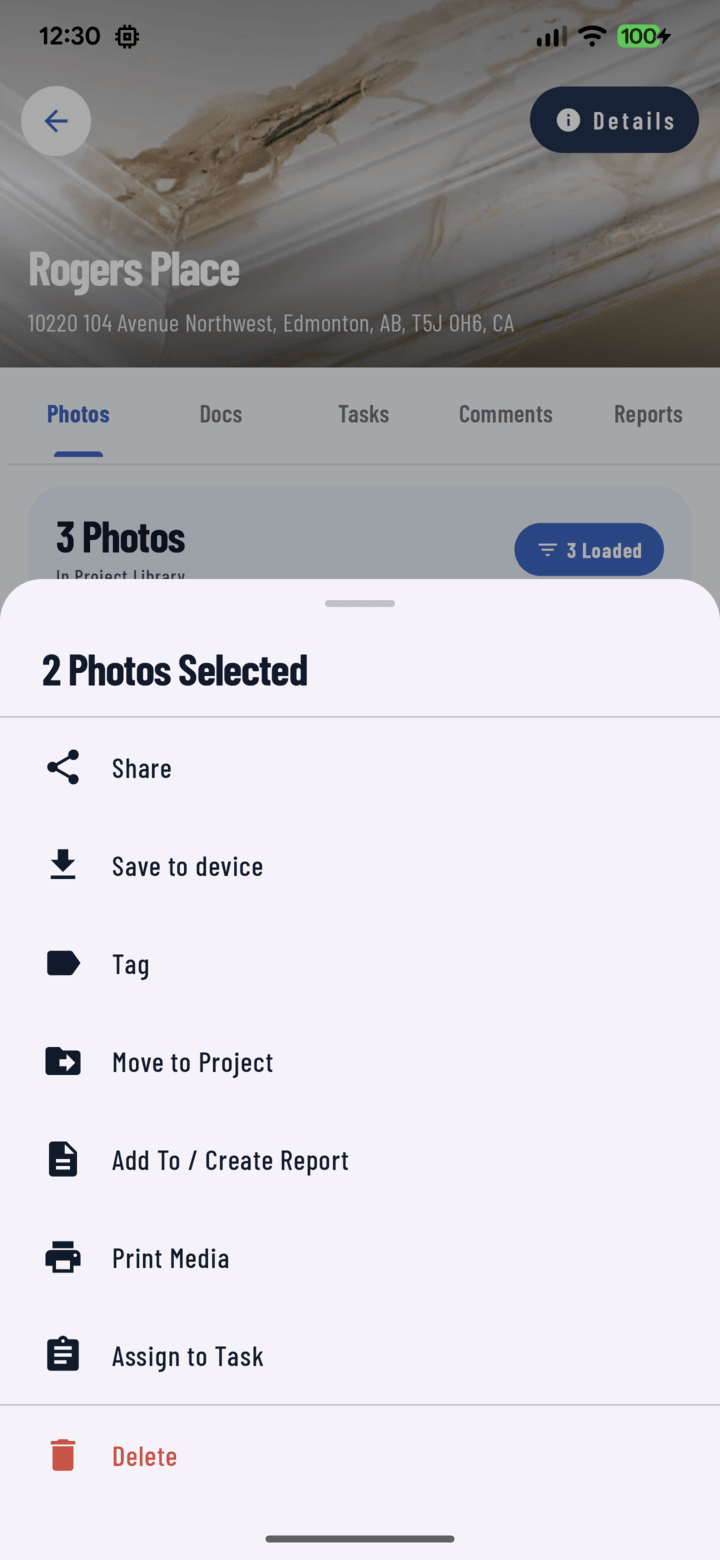
The Save to device action in the bulk actions sheet.
Steps
- Open the project's Photos tab (or the main Photos tab).
- Long-press a photo or video to enter multi-select mode.
- Select everything you want — tap items individually or use a date header's select-all toggle for a whole day.
- Open the actions sheet and tap Save to Device.
- A progress overlay runs while items download; a confirmation snackbar appears when done.
- Find the media in your phone's gallery / Photos app.
Good to Know
- This copies — the originals always stay in CrewBox, organized under their project.
- Single item? Open it full-screen → More → Save to Device.
- On iOS the app asks for photo-library "add" permission the first time.
Common Uses
- Building a personal work portfolio
- Prepping images for estimating or design software
- Keeping local copies before finishing at a site
- Setting a project photo as a phone wallpaper (crews do this)