
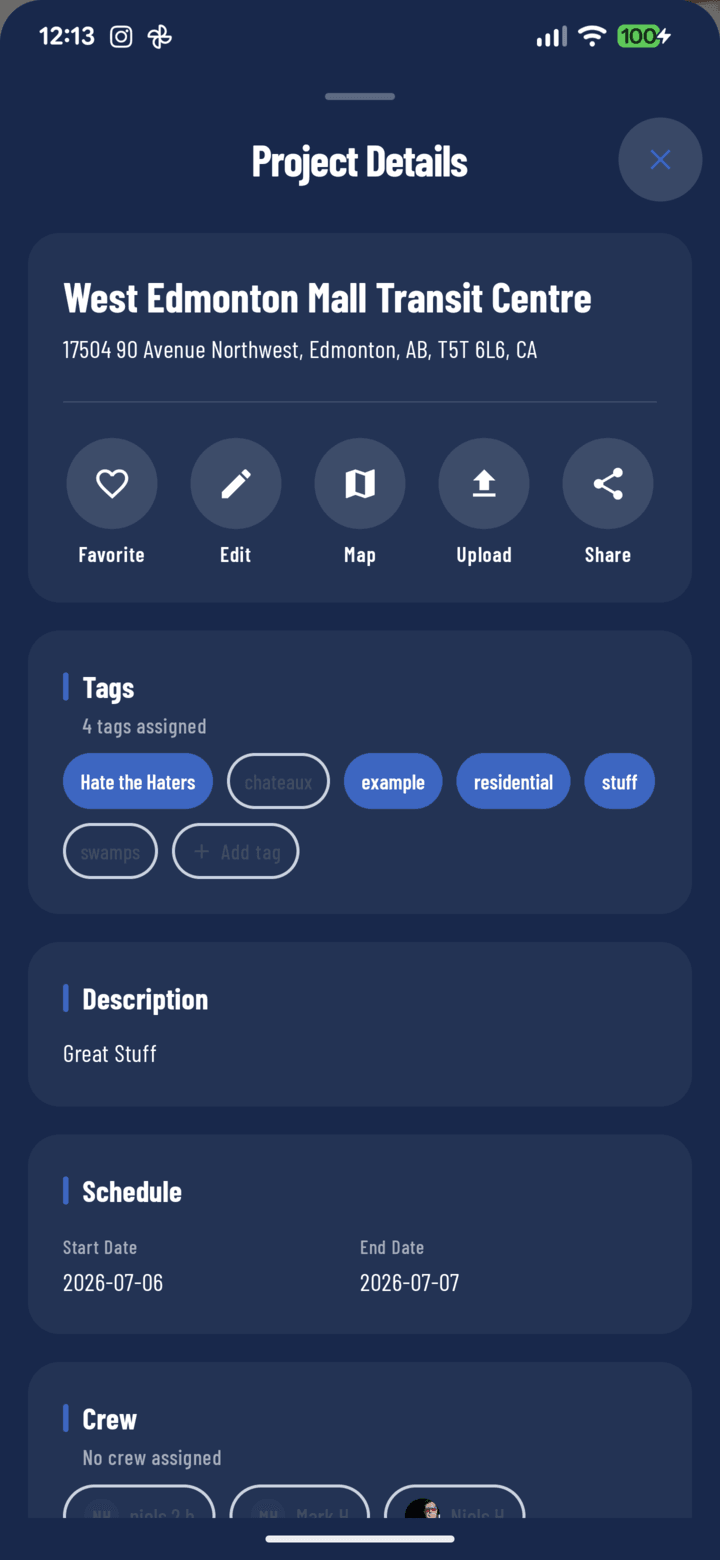
The Upload action in the project's details sheet opens your device's media picker.
Steps
- Open the project the media belongs to.
- Tap the Details pill → tap Upload in the action row.
- Your device's media picker opens — select photos and/or videos from the gallery.
- Confirm — the media uploads into the project's Photos tab (background upload, progress strip under the header).
After Import
Imported media behaves like any CrewBox capture: tag it, note it, annotate it, comment on it, put it in reports. One difference — GPS and capture attribution reflect what the original file carried, not a CrewBox capture record, so shot-in-app photos remain the stronger documentation.
When to Import vs. Capture
Capture in CrewBox whenever possible (auto project filing, GPS, attribution, offline tray). Import is the catch-up tool: media from texts, emails, other phones, or the pre-CrewBox era.