
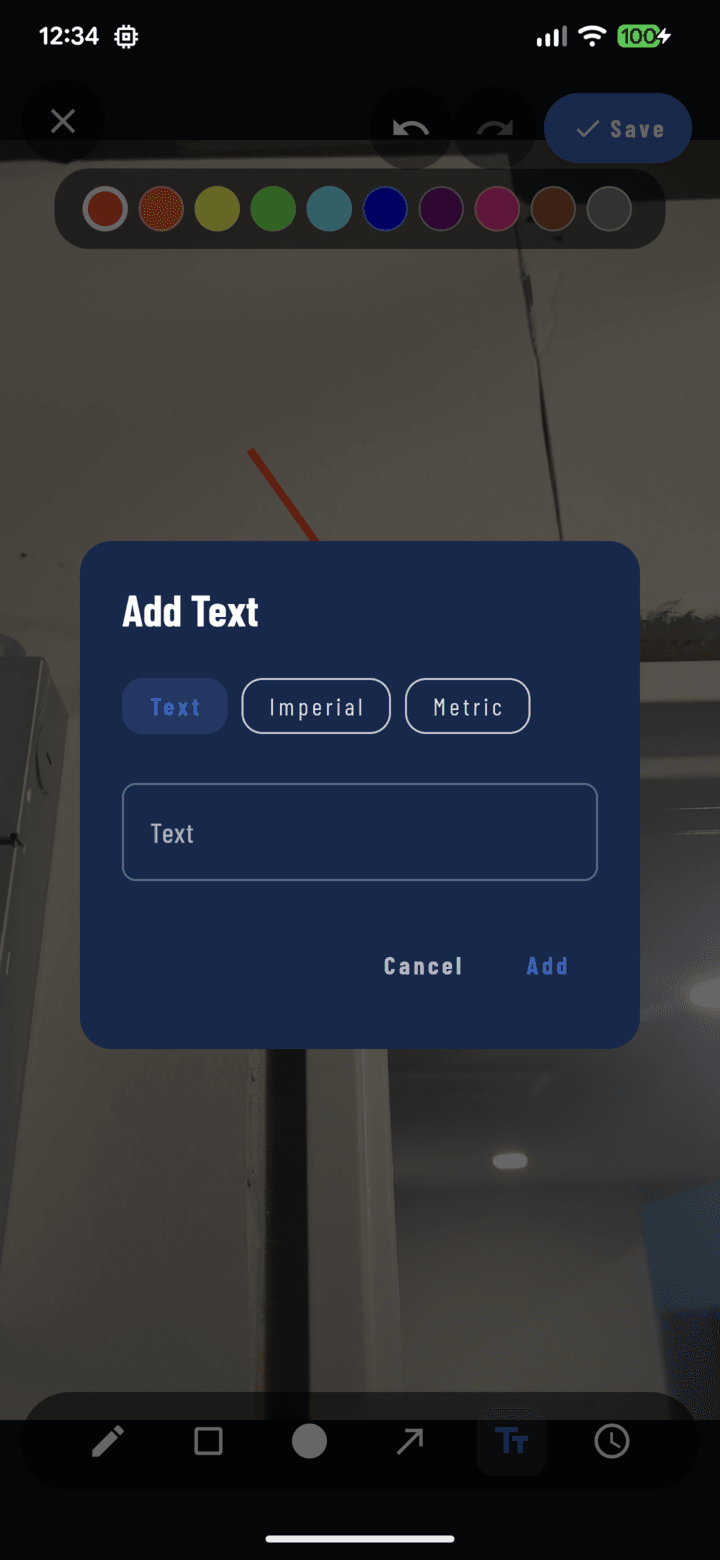
The Add Text dialog — switch between Text, Imperial, and Metric modes.
Add a Text Label
- Open the photo full-screen → Annotate.
- Select the Text tool and tap where the label goes.
- Type in the text dialog and confirm.
- Double-tap any text later to rewrite it; use Select to move it, recolor it, or resize.
Add a Measurement
The text tool has three modes — switch in the text dialog:
| Mode | Output |
|---|---|
| Text | Free-form ("replace this section", "water line here") |
| Imperial | Formatted feet + inches ("3' 6\"") |
| Metric | Formatted meters + centimeters ("1.07 m") |
Measurement modes keep dimensions consistent and unambiguous — no more guessing whether "3.6" meant feet or meters. Pair with a both-ends arrow spanning the distance for a classic dimension callout.
Legibility Tips
- Pick a contrasting color — white or yellow on dark/busy areas, dark on bright.
- Keep labels short; the photo is the content, the text is the pointer.
- Position text near but not on the thing it describes — use an arrow to bridge.