
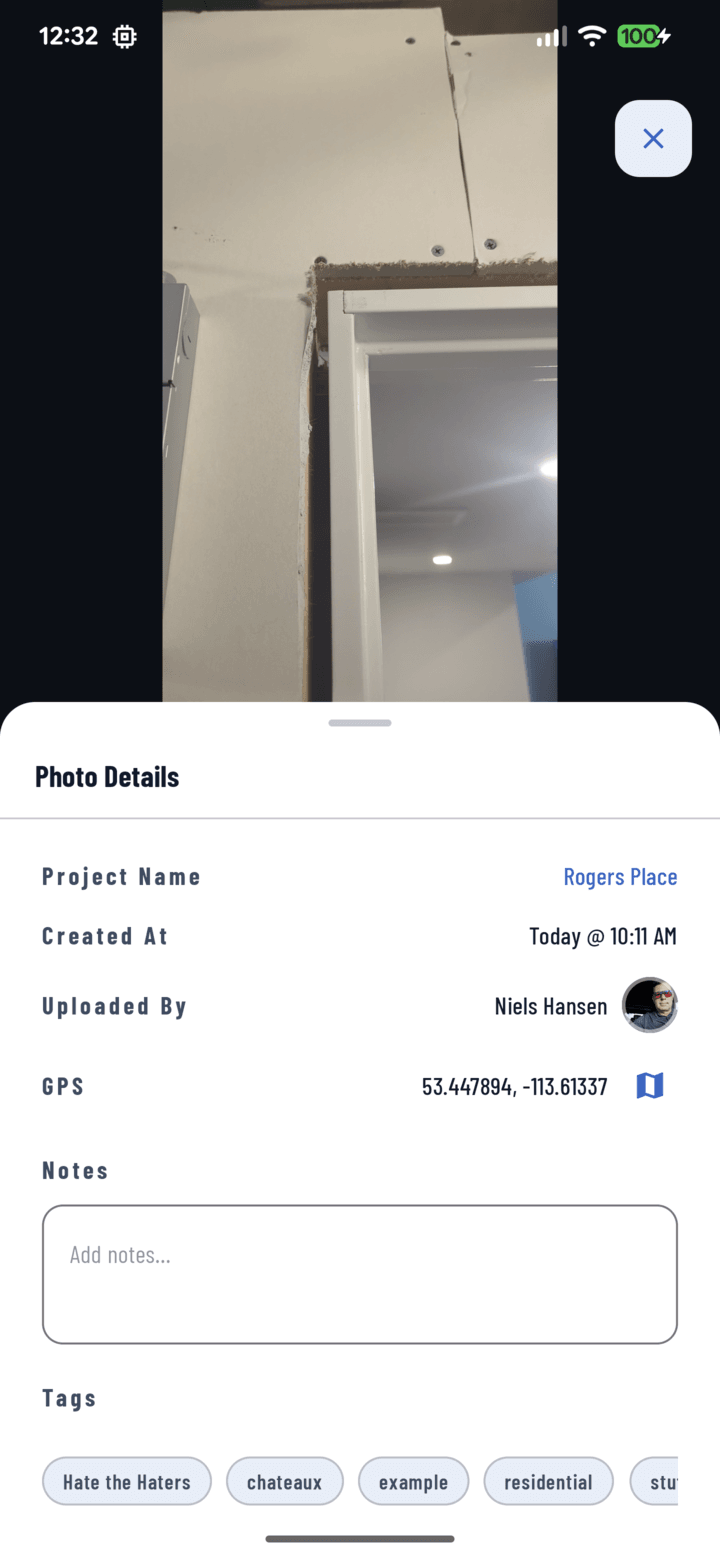
Tags on a photo, shown in its Details tray.
Tag While Shooting
In the camera, tap tag chips above the shutter before capturing — every shot carries those tags automatically. This is the cheapest moment to organize.
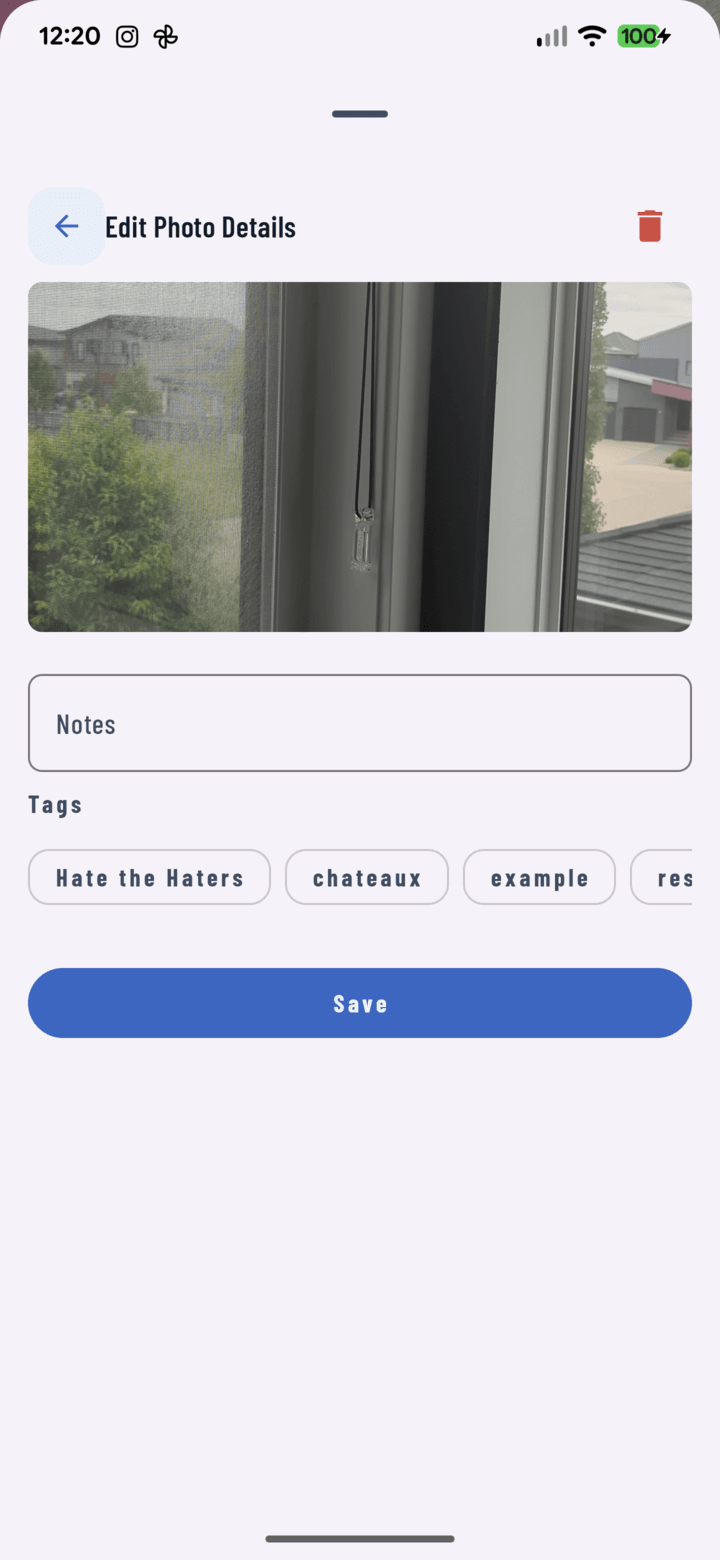
Tags applied at capture time can be adjusted per photo in the tray before upload.
Tag After the Fact
- One photo: open it full-screen → Details tray → toggle tags and edit notes → Update.
- Many photos: in the grid, long-press to enter selection mode, select photos (or use the select-whole-date toggle on a date header), then choose Tag from the actions sheet.
Find Photos Fast
Open the filter dialog on the Photos tab and combine:
- My Photos — only your captures
- Media type — photos vs. videos
- Operators — who captured them
- With comments / with tags / with notes
- Tags, date range, search, and sort order
Active filters show as removable chips above the grid.
Keep Projects Clean
- Photo landed in the wrong project? Move it.
- Showcase shot? Open it → More → Set as project cover.
- Reject? Select and Delete (owner, manager, or the photographer; confirmation required).
Related
- Multi-select photos & bulk actions
- Move photos between projects
- Capture photos in the field
- FAQ: Photos & Camera