
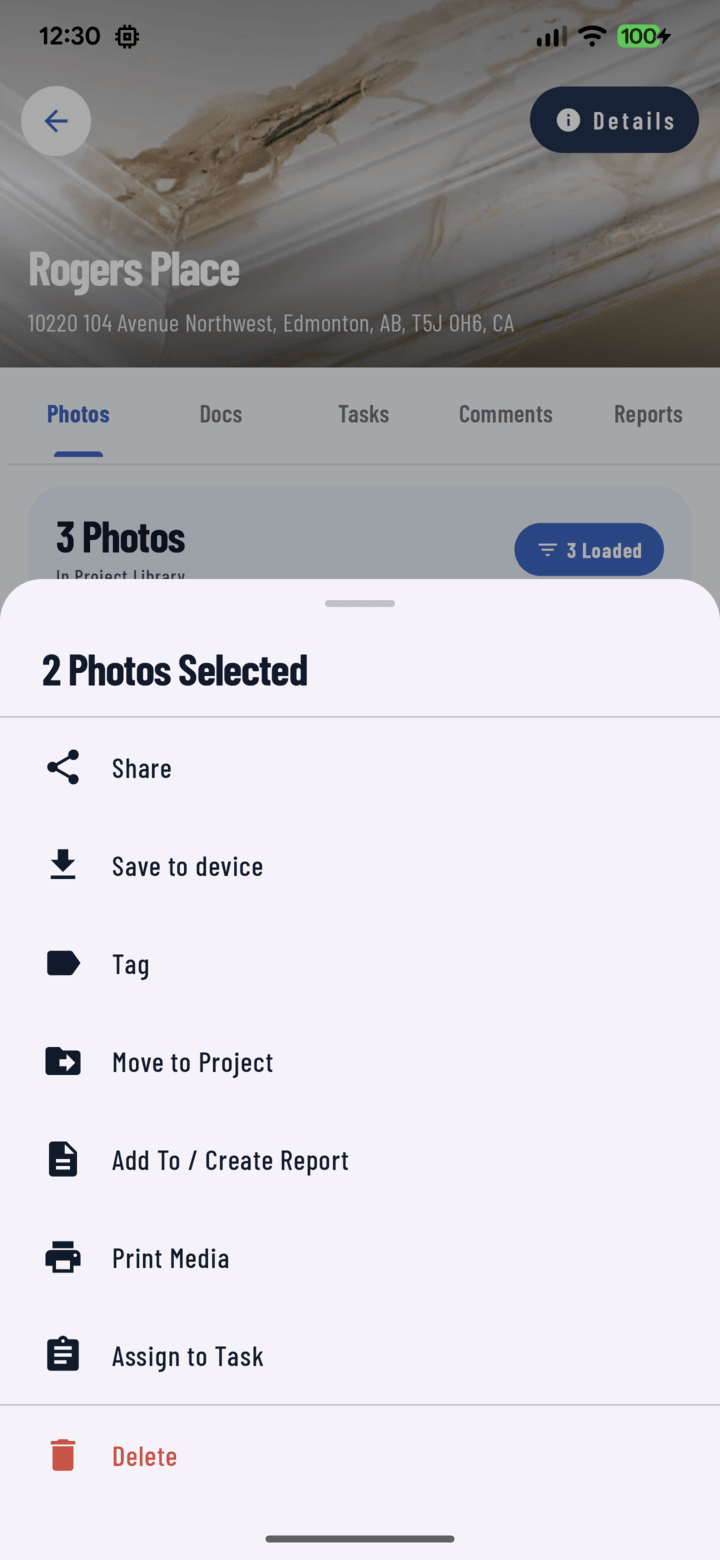
The Add To / Create Report action in the bulk actions sheet.
Steps
- Open the project's Photos tab.
- Long-press to enter multi-select mode and select the photos for the report (filter first — e.g. by tag or date — then use date-header select-all).
- Open the actions sheet and tap Add to Report.
- Choose the destination:
• Create new report — a fresh report opens in the editor with your photos ready to place into sections, or
• Pick an existing report from the list — the photos append to it. - In the report editor, arrange the photos into sections, set captions, and choose each photo's display mode (Original / Annotation / Both).
- When ready: Generate PDF → share, print, or save to the project's Documents.
Why This Beats Friday-Afternoon Report Building
Adding photos to the report as you shoot them means the weekly client report is 90% built by Friday — you just review sections and generate. No scrolling back through hundreds of photos trying to reconstruct the week.
Related
- Build a PDF report — the full report editor
- Use report templates
- Multi-select photos & bulk actions