
Save a Template
- Build a report the way you like it — cover elements, sections, headers/footers, layout settings (guide).
- Open the report editor's overflow menu and choose Save as Template.
- Name it (e.g. "Weekly Progress", "Safety Walkthrough", "Closeout Package").
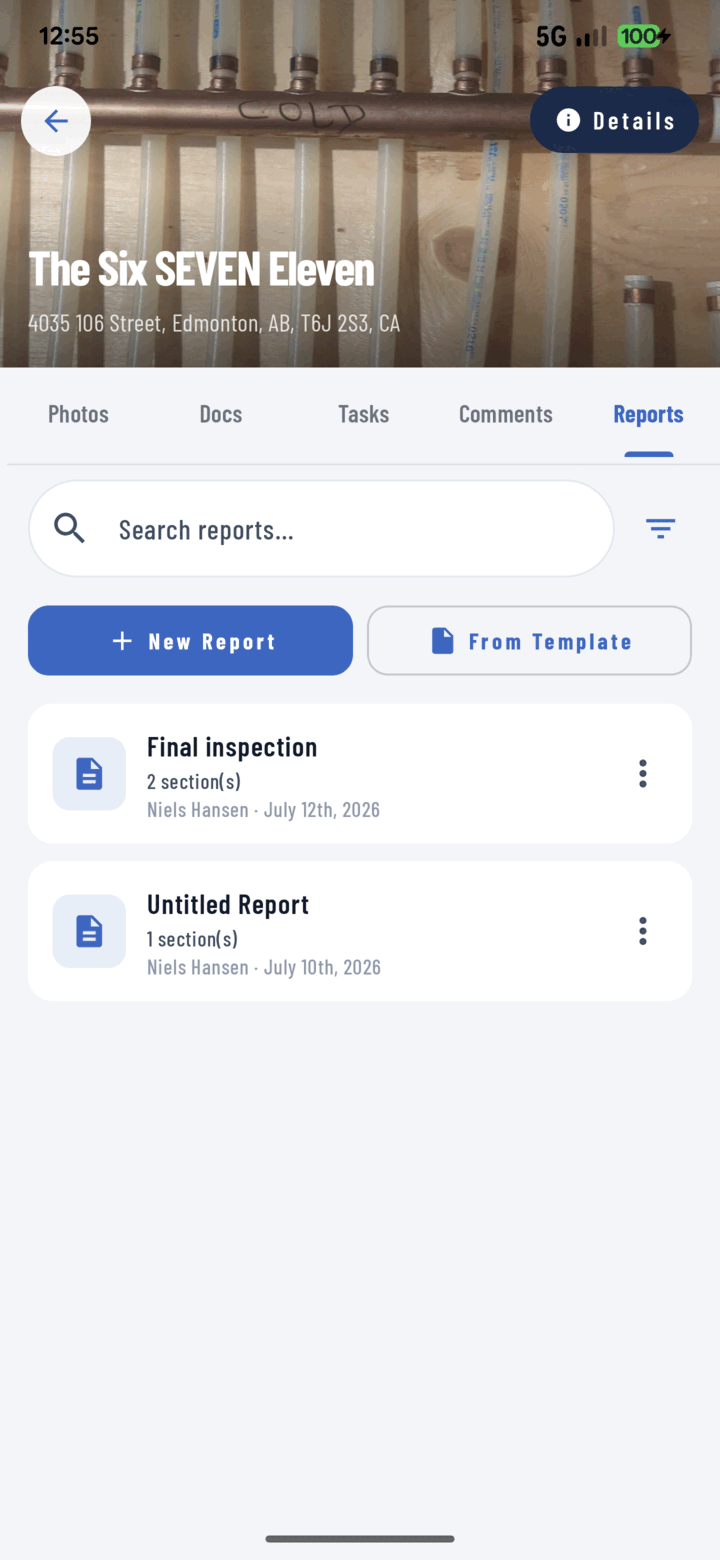
Tap From Template on the Reports tab to start a new report from one of your saved templates.
The template stores the report's structure and settings — new reports created from it pull fresh photos from whichever project you're in.
Create a Report from a Template
- Project → Reports tab → From Template.
- Search or scroll the template picker and select one.
- A new report opens pre-structured — add this period's photos to each section and generate.
Manage Templates
Delete outdated templates from the template picker. Duplicating an existing report (Reports list → overflow → Duplicate) is another quick way to iterate a format.
Related
- Build a PDF report
- FAQ: Reports