
Steps
- Open the report in the editor and select the Cover tab.
- Make sure Include cover page is on.
- Turn on the Company logo toggle.
- Generate the PDF — your logo renders at the top of the cover page.
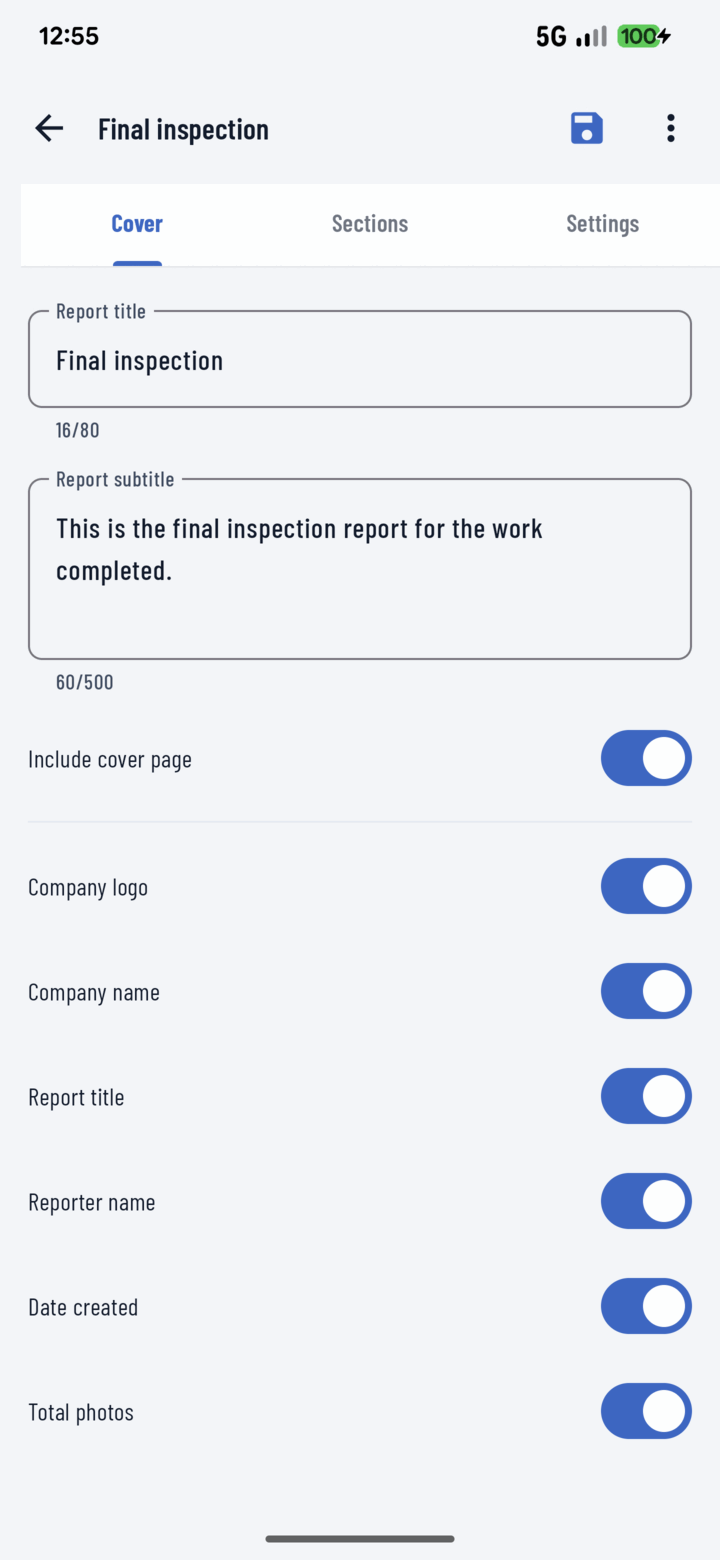
The Cover tab's Company logo toggle prints your saved logo on the report's cover page.
Where the Logo Comes From
The logo is your company profile's logo — set once for the whole company, used by every report from every crew member. The mobile app pulls it automatically; it isn't uploaded per report.
If no logo appears, your company profile doesn't have one set yet — set it in your company's CrewBox account settings (or ask whoever administers your company account).
Branding Tips
- Pair the logo toggle with Company name on the cover for full letterhead effect — or logo alone if the logo already carries the name.
- Save your branded setup as a template so every report from every crew member goes out with consistent branding.