
Steps
- Open the report in the editor and select the Sections tab.
- Tap Add section.
- Tap the new section to open its editor and fill in:
• Title — the chapter heading ("Foundation Work")
• Subtitle — optional context line
• Summary — a paragraph describing this portion of the work (character-limited to stay report-sized) - Tap Add Photos — a grid of the project's media opens; multi-select the photos for this section and confirm.
- Repeat for each chapter of the report.
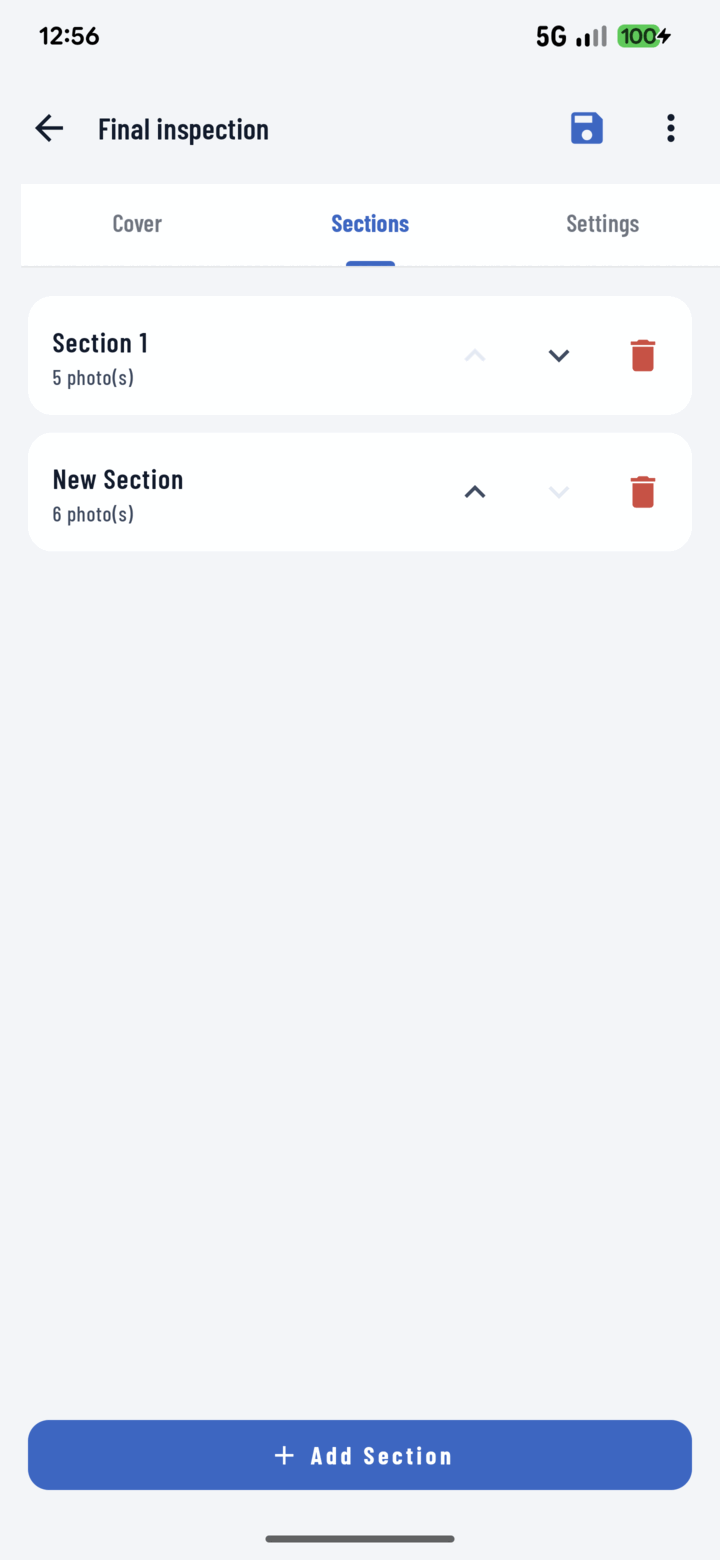
The Sections tab lists every section; tap Add Section to append a new one.
Structuring Advice
- By area (Exterior / Interior / Site) for progress reports.
- By trade (Framing / Electrical / Plumbing) for multi-trade updates.
- Before / After pairs for restoration and remodel work.
- By date for daily-log style reports.
Whatever structure you pick, save it as a template so it repeats.