
Steps
- Open the report in the editor (project → Reports tab → tap the report).
- Choose Generate PDF from the overflow menu — rendering shows page-by-page progress.
- In the PDF preview, tap Save to Documents.
- The PDF lands in the project's Documents tab, named and dated, alongside plans and permits.
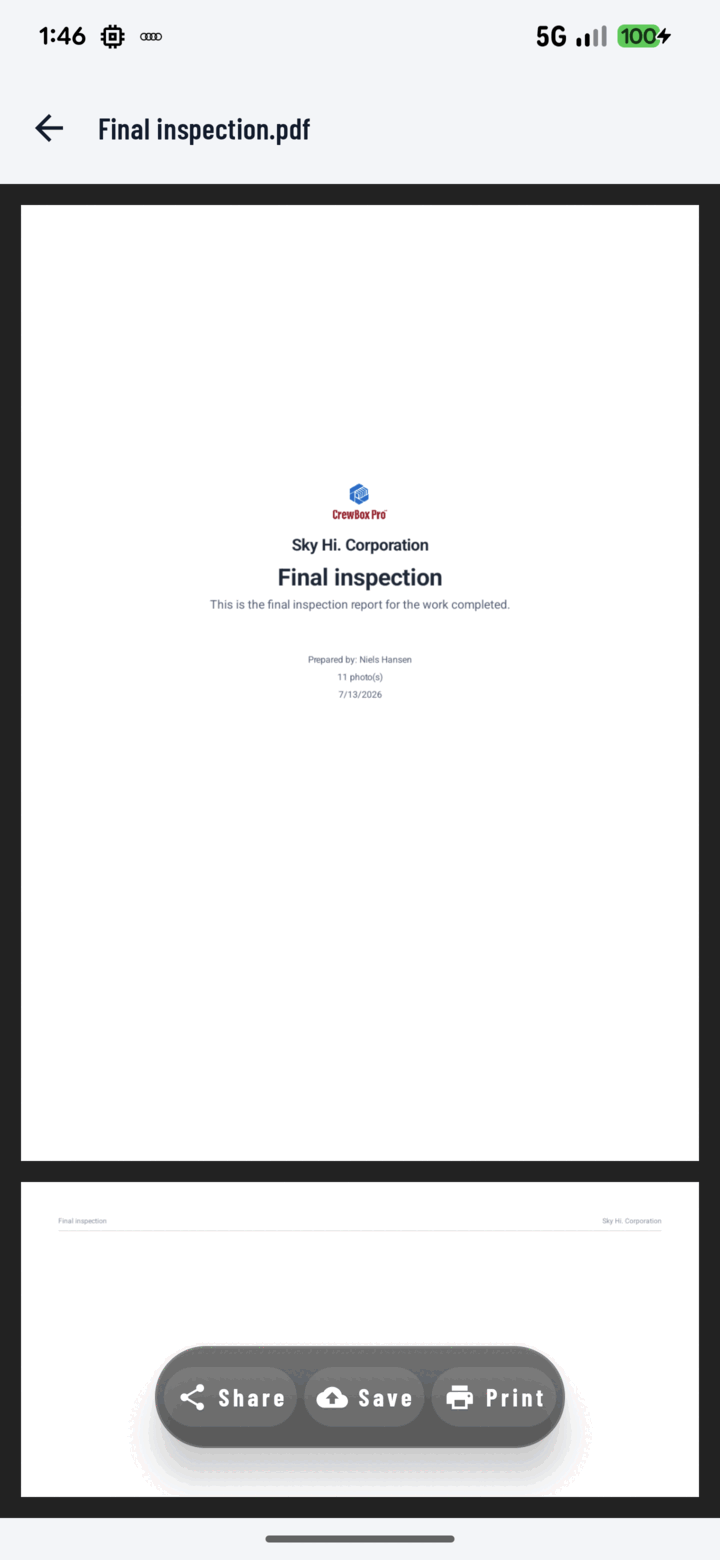
From the PDF preview, tap Save to file the report in the project's Documents tab as a permanent record.
Why This Beats Just Sharing It
- Permanent record: the report becomes part of the project's file history — findable months later for disputes, warranty questions, or client requests.
- Team access: everyone on the project can open it from Documents; a shared PDF in a text thread helps only the person who received it.
- Full document features: once saved, the PDF gets everything documents get — in-app viewing, comments, printing, sharing, even re-sharing later without regenerating.
Tip
Do both: Save to Documents for the record, then Share for the client. The preview screen offers Share, Save to Documents, and Print side by side.