
Steps
- Open the report in the editor and select the Settings tab.
- Find the Header and Footer fields — each has left, center, and right slots, so one line can carry three pieces of information.
- Type static text directly ("Confidential — for client use only"), and/or:
- Tap the insert-token control to drop in dynamic
{{...}}placeholders — project name, dates, page numbers, and similar fields that fill themselves in at PDF time. - Toggle Show header / Show footer on.
- Generate the PDF — every page carries your header and footer.
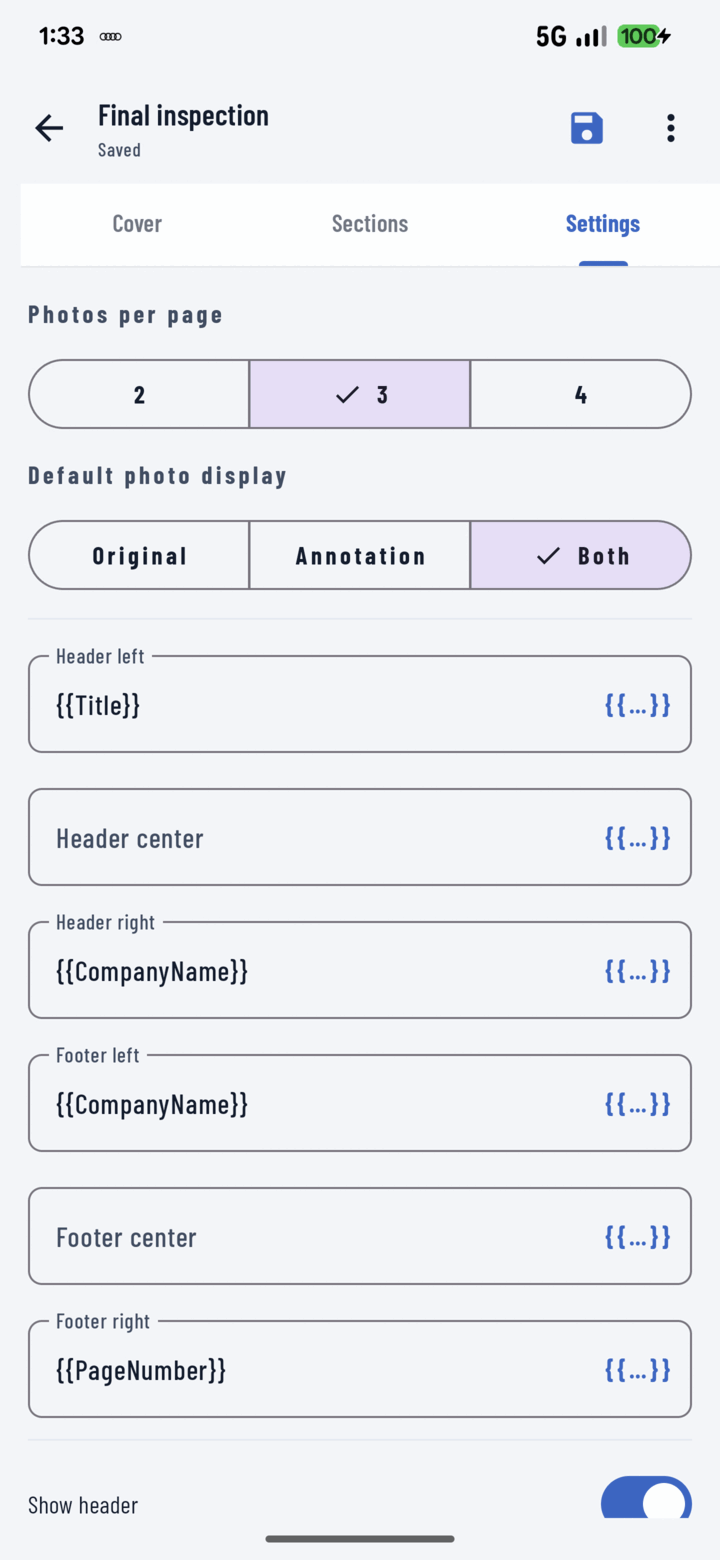
The Settings tab exposes six header/footer slots that accept tokens like Title, CompanyName, and PageNumber.
Mixing Static Text and Tokens
Tokens and text combine freely in one slot:
- Left header:
{{project_name}}→ the job's name on every page - Center footer:
Page {{page}}style numbering - Right header: your company name as plain text
Because tokens resolve at generation time, a template with tokenized headers works for every project — the same template prints "Oak Street Remodel" on one job and "Maple Ave Roof" on the next.