
Steps
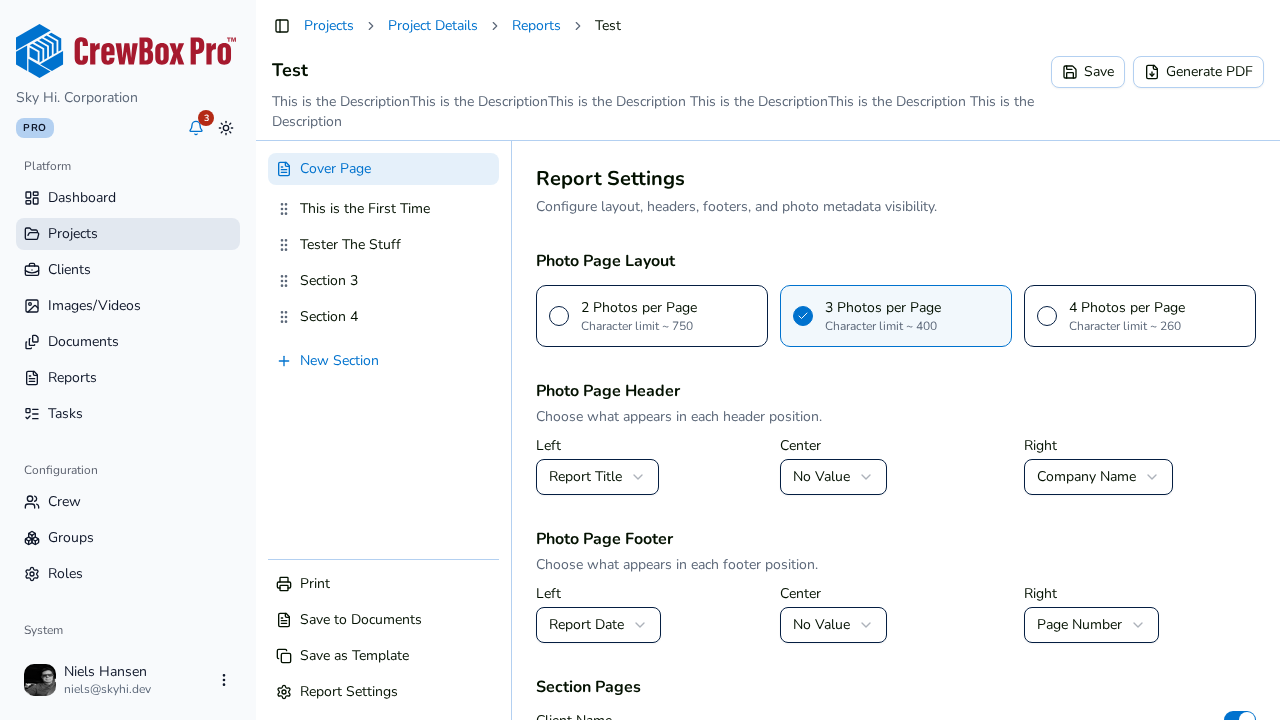
1. Open Report Settings
In the report editor, click Report Settings at the bottom of the section sidebar.
2. Understand the six slots
The header and the footer each have three positions: left, center, and right. Each position is configured independently, so you have six slots in total.
3. Choose what each slot shows
Every slot can be set to one of three things:
- No Value — leave the position empty.
- A token — an automatic value resolved when the PDF renders (see below).
- Free Text — any fixed text you type, such as a job number or a confidentiality notice.
4. Pick tokens where useful
Five tokens are available:
| Token | Renders as |
|---|---|
{{Title}} | The report title |
{{PageNumber}} | The current page number, updated on every page |
{{ReportDate}} | The report date |
{{ReportCreator}} | The name of the person who created the report |
{{CompanyName}} | Your company name |
5. Turn the bars on or off
The Show Header and Show Footer toggles (in the show/hide options) control whether the bars render at all. Changes autosave and the live preview updates as you go.
Defaults
New reports start with a sensible layout: header left {{Title}}, header right {{CompanyName}}, footer left {{ReportDate}}, footer right {{PageNumber}}. Adjust from there rather than building from scratch.