
Steps
1. Open the Reports tab
Open your project and click Reports. The tab lists all reports for this project, with Load Template and New Report buttons in the header.
2. Find the report you need
Use the filter bar:
- Search — type to filter by title (results update as you type).
- Creator — filter to reports made by a specific person.
- Created date range — narrow to a time window.
- Grid/list toggle — switch between card view and a table with Title, Creator, Sections, Created, Updated, and Actions columns.
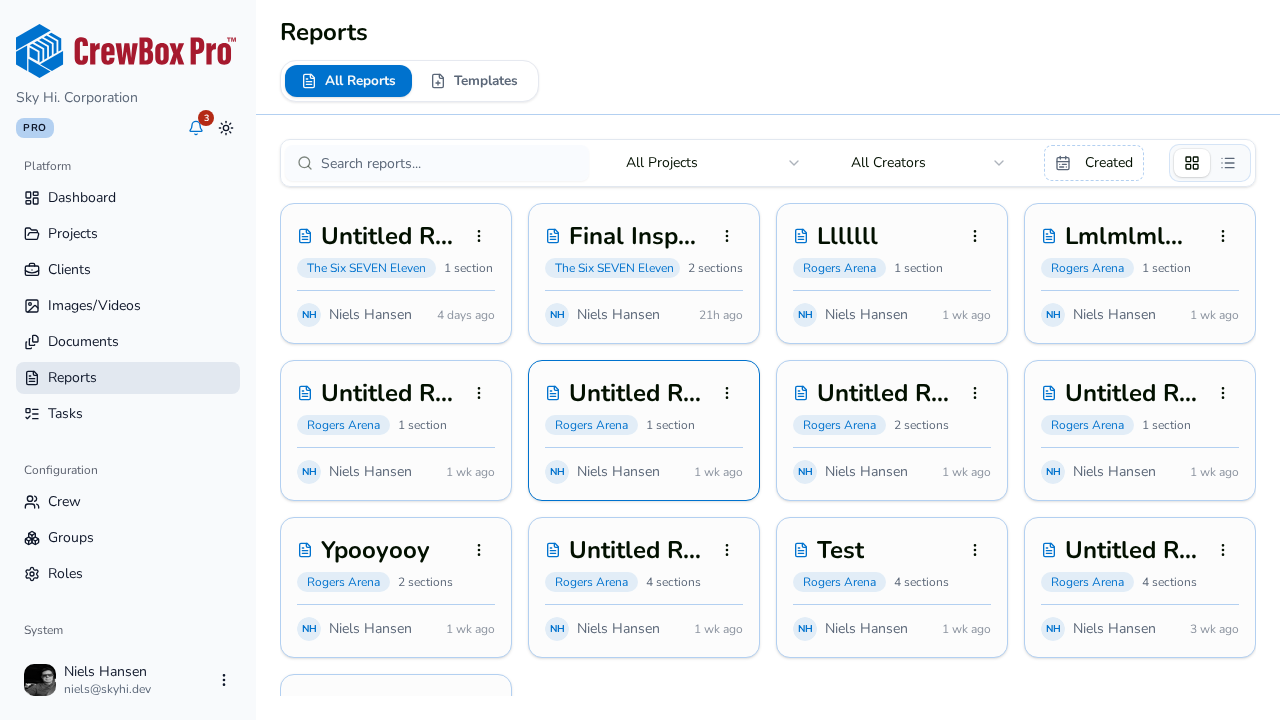
Cards show the report title, section count ("{n} section(s)"), the author, and created/updated dates. If your filters match nothing, a filtered empty state appears; a project with no reports yet shows a prompt to create one from scratch or from a template.
3. Use the per-report actions
Each report has an actions menu with three choices:
- Open — jump into the report editor.
- Duplicate — make a deep clone named "{Title} (Copy)", including all sections and photos.
- Delete — remove the report after a confirmation; a toast confirms the deletion.
Tips
- Duplicating is the quickest way to produce a follow-up report with the same structure — duplicate last week's, swap the photos, update the title.
- To reuse structure across projects instead, open a report and use Save as Template.