
Steps
1. Open the global Reports page
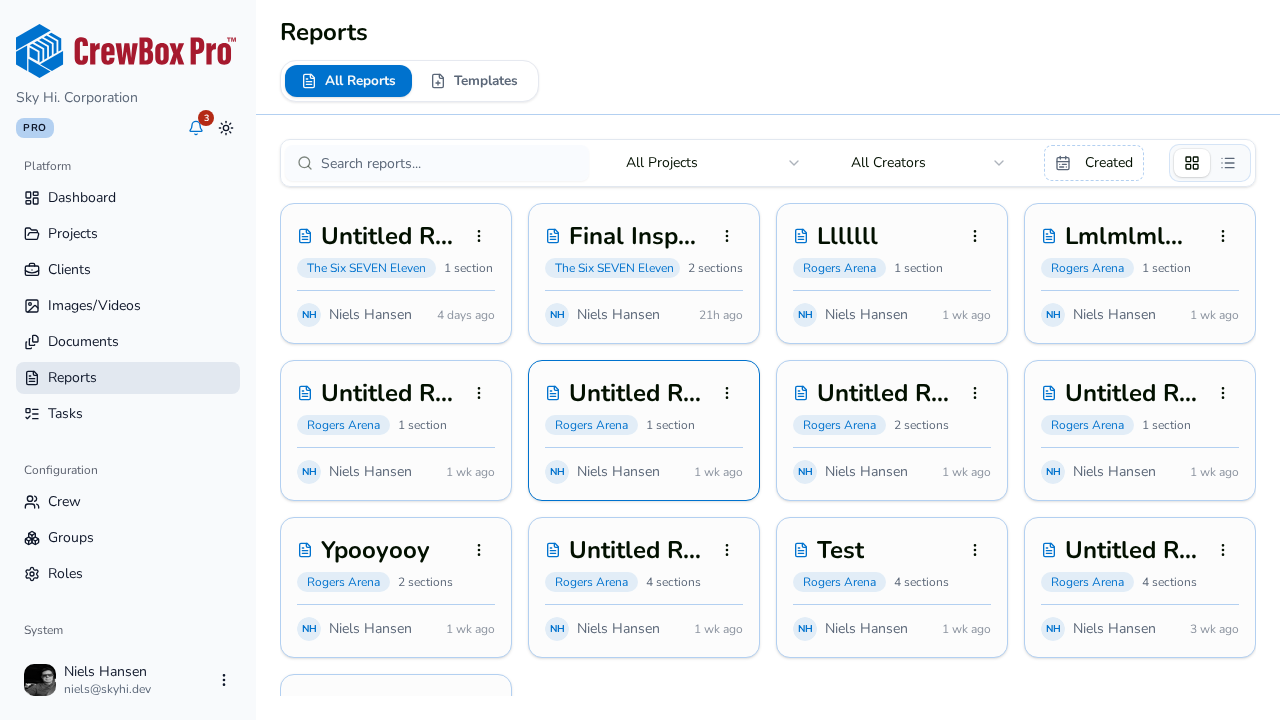
Click Reports in the main dashboard navigation (not inside a project). The page has two tabs: All Reports and Templates.
2. Browse All Reports
The All Reports tab is the cross-project report library. Each card shows the report's details plus a pill naming its project, so you always know where a report belongs.
3. Filter down to what you need
- Search — matches report titles and project names.
- Project — limit to a single project.
- Creator — limit to reports by one person.
- Created date range — narrow to a time window.
- Grid/list toggle — cards (the grid adapts from one to four columns) or a table.
4. Open a report
Click a report and it opens in the report editor inside its own project — the global page is a directory, not a separate editing surface. Reports remain per-project; this page just saves you the trip through each project's Reports tab.
5. Duplicate or delete in place
Each report's menu offers Duplicate (creates a "(Copy)" in the same project) and Delete (with confirmation) right from the global list.
The Templates tab
The second tab manages company-wide report templates: New Template, Edit, Duplicate, and Delete. See the templates guide for the full workflow.