
Steps
1. Open the report
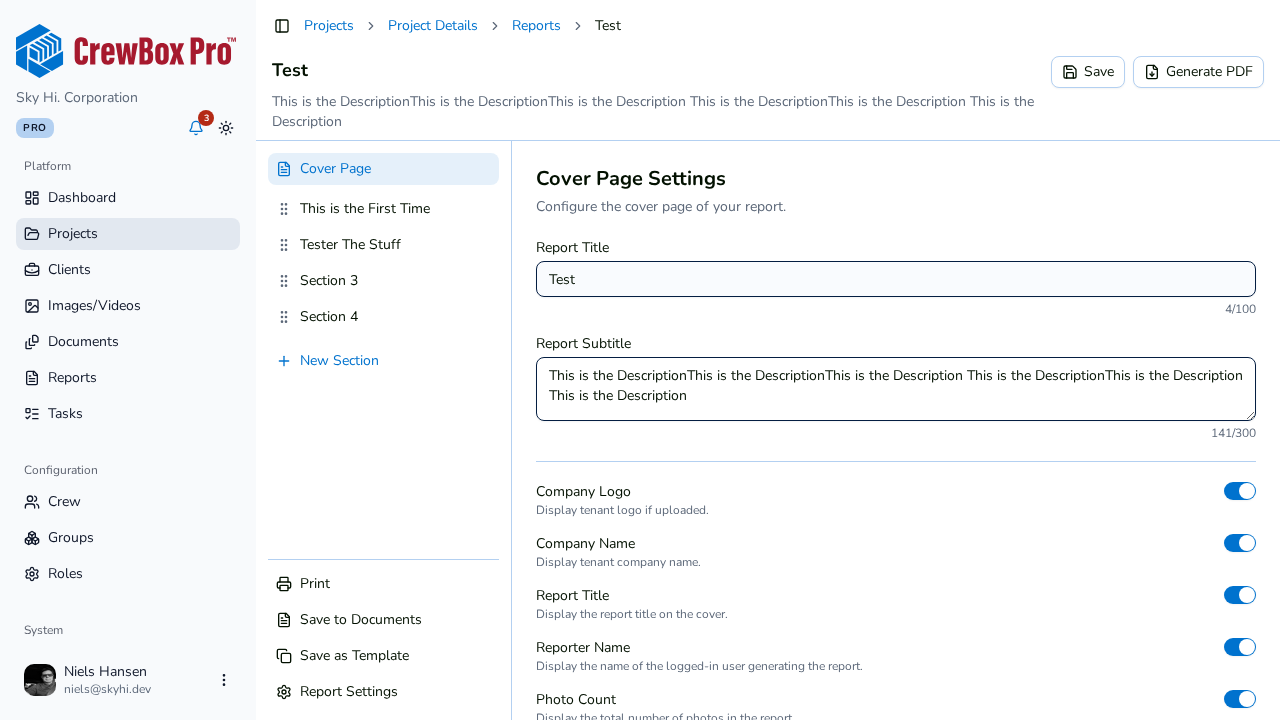
Open the report whose structure you want to reuse — its cover setup, sections, and settings are what the template will capture.
2. Click Save as Template
At the bottom of the editor's section sidebar, click Save as Template. A dialog opens.
3. Name the template
Enter a template name your teammates will recognize — for example "Weekly Progress Report" or "Final Walkthrough".
4. Choose what to keep
Two checkboxes control how much section text carries over:
- Include sub-titles — keep each section's sub-title text.
- Include summaries — keep each section's summary text.
Leave them unchecked for a pure structural skeleton (section titles only), or check them when the wording is boilerplate you reuse every time.
5. Save
Confirm the dialog. The template is saved company-wide and appears under Templates on the global Reports page, and in the Load Template dialog on every project's Reports tab.
What a template contains
Templates capture the report's structure: title, section list, cover configuration, and all report settings (photos per page, headers and footers, show/hide toggles). Photos are intentionally stripped — templates are per-company while photos are per-project, so each new report starts with empty sections ready for that project's media.