
Steps
1. Filter down to the photos you want
On the Photos tab, use search, tags, and the date range to narrow the grid to the shots the report needs.
2. Select them
Click Select, then check the photos — group header toggles grab a whole day, label, or uploader section in one click.
3. Choose Add to Report
In the floating action bar, open the Actions menu and click Add to Report.
4. Pick new or existing
You have two options:
- Create a new report — a fresh report is started containing your selected photos.
- Append to an existing report — your selection is added as a new section at the end of the report you choose.
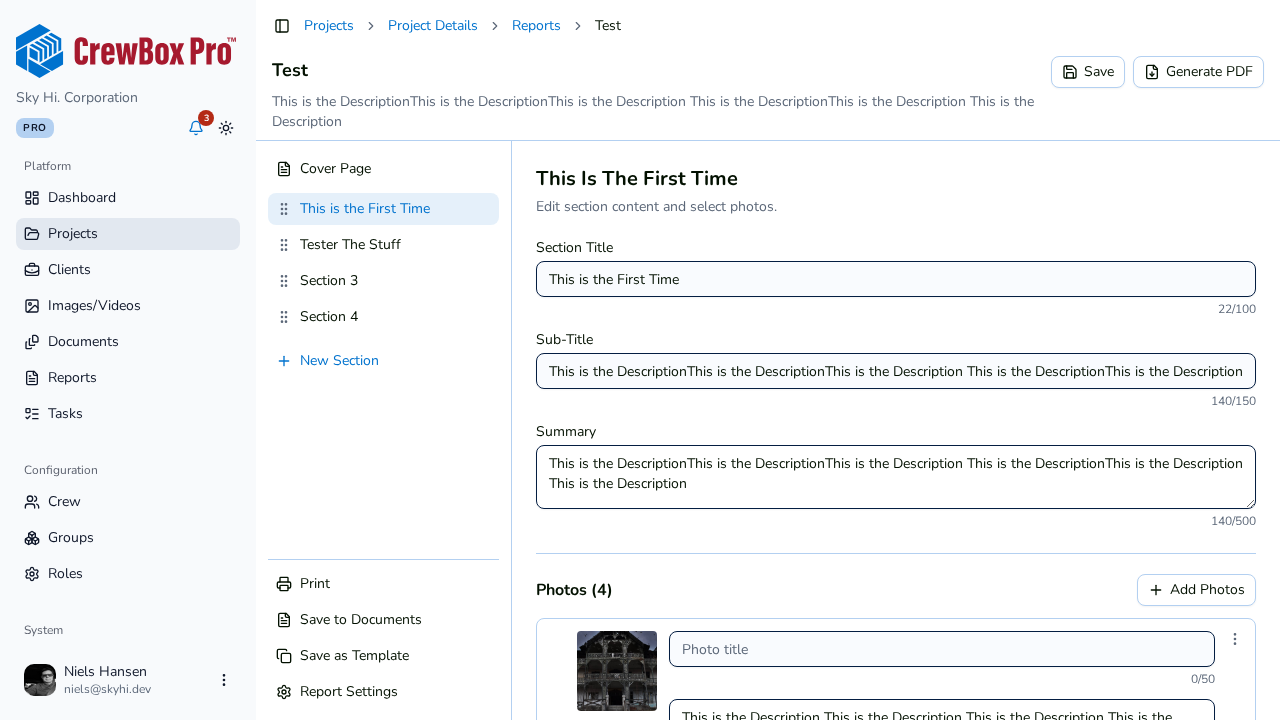
5. Land in the report editor
Either way, CrewBox jumps you straight into the report editor with the photos in place, ready to arrange, caption, and generate the PDF.
Tips
- Photo tags can render into the PDF as color-coded pills, and annotated photos can appear as Original, Annotated, or Both — tag and annotate before building the report to get the most out of it.