
Steps
1. Find the report
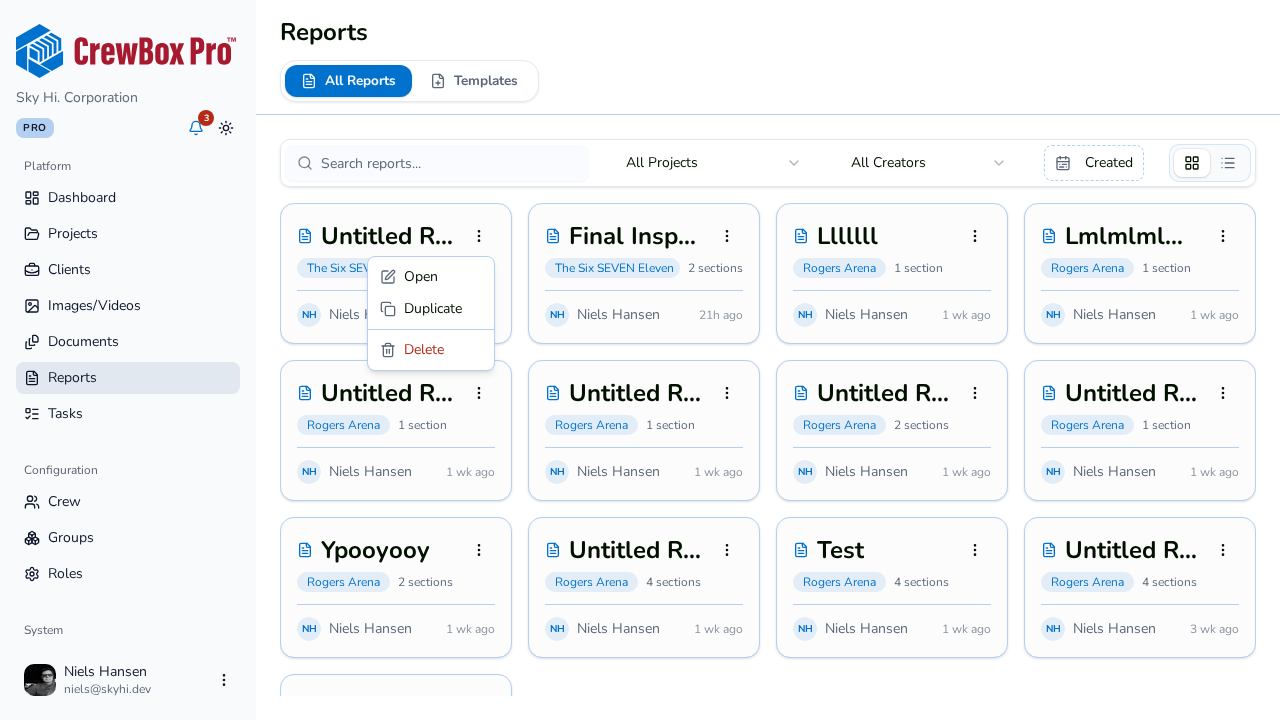
Open your project's Reports tab, or the global Reports page if you'd rather work from the cross-project list. Use search, the creator filter, or the date range to locate the report.
2. Choose Duplicate
Open the report's actions menu and click Duplicate.
3. Open the copy
A new report appears named "{Original Title} (Copy)". It's a deep clone: cover setup, all sections in order, all photos with their titles, descriptions, and display settings, plus every report setting (photos per page, headers and footers, show/hide toggles). Click Open on the copy to start editing.
4. Make it the new report
Rename the title, swap or add photos, and update section summaries. The original is untouched — the two reports are fully independent from the moment of duplication.
Duplicate vs. template
- Duplicate keeps the photos — ideal for iterating within the same project, like a weekly report where much of last week's content carries forward.
- Save as Template strips the photos and saves the structure company-wide — ideal for reusing a format across projects.
You can also duplicate a single photo row inside a report (row menu > Duplicate) if you only need one photo repeated, not the whole report.