
Steps
1. Finish the report
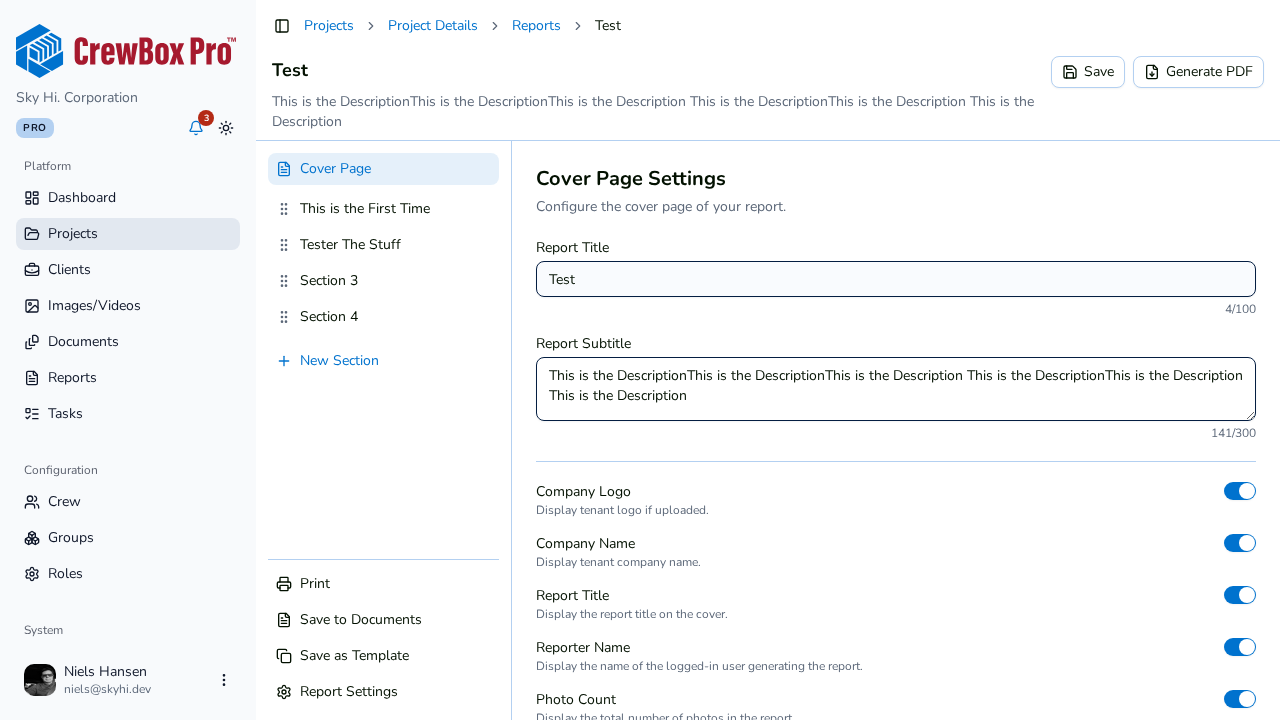
Open the report in the editor and confirm the content is ready — check the live preview on large screens, or click Generate PDF to inspect a download.
2. Click Save to Documents
At the bottom of the section sidebar, click Save to Documents. CrewBox renders the PDF in your browser and uploads it as a document in the current project.
3. Find it in the Documents tab
Open the project's Documents tab. The PDF is there, automatically tagged "Report", so you can filter by that tag to see every filed report at a glance.
Why file reports as documents
- One source of truth — the deliverable lives with the rest of the project's files, visible to the whole crew.
- Document features apply — the filed PDF is a normal project document: it opens in the document viewer, can be commented on, and shows up in document search and filters.
- Snapshot in time — the saved PDF is a fixed copy. If you keep editing the report afterward, the filed document doesn't change; click Save to Documents again to file an updated version.
Tips
- Use a clear report title before saving — it carries into the filed document and makes the Documents tab easier to scan.
- For a physical copy instead, use Print; for a local file, use Generate PDF.