
Steps
1. Use a large enough screen
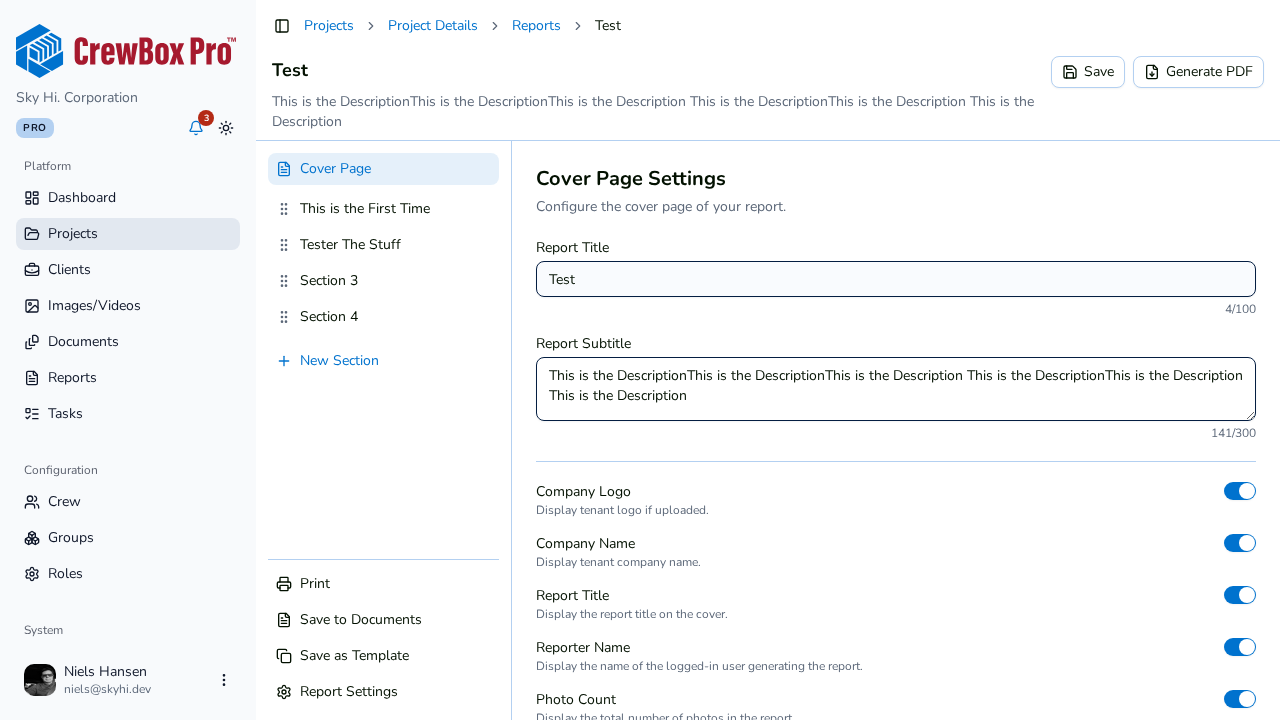
The live preview pane appears alongside the editor on large viewports (roughly 1600 pixels wide and up). On smaller screens the editor runs without the preview — you can still check your work at any time with Generate PDF.
2. Edit as usual
Open any part of the report — cover page, a section, or settings — and make changes. The preview pane, labeled Live Preview, shows the actual rendered PDF, not an approximation: the same client-side renderer that produces your download drives the preview.
3. Watch it re-render
Shortly after you stop making changes, the preview re-renders automatically. Because it waits for a pause in your typing, it won't flicker on every keystroke — section text fields also commit on blur for the same reason, so some text edits appear after you click away from the field.
4. Read the preview states
- Rendering — the PDF is being rebuilt after your change; give it a moment.
- Error — something prevented the render; the pane shows an error state instead of a stale page. Adjust the report (for example, revisit the last change) and the preview retries on the next edit.
Why trust it
What you see is what Generate PDF, Print, and Save to Documents will produce: same A4 pages, same headers and footers with resolved tokens, same photo layout and annotation overlays. If the preview looks right, the deliverable is right.