
Steps
1. Create a report from a template
Open your project's Reports tab and click Load Template. A dialog lists your company's templates with their section counts ("{n} sections"). Pick one and CrewBox creates a new report in this project from it — cover setup, sections, and settings included — and opens the editor.
2. Fill in the project's content
Templates never contain photos (they're stripped on save, since templates are company-wide and photos are per-project). Go section by section, click Add Photos, and drop in this project's media, adjusting titles and summaries as needed.
Managing templates
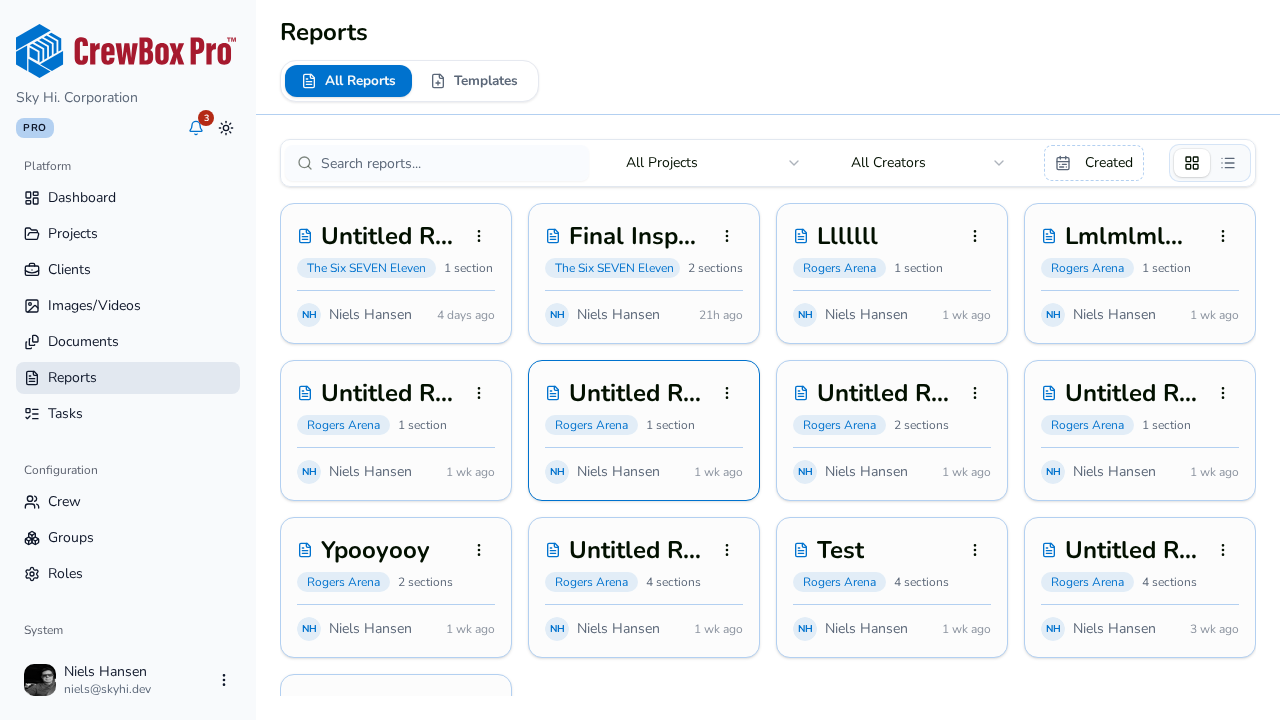
Templates live on the global Reports page (Reports in the main navigation), under the Templates tab:
- New Template — creates an "Untitled Template" and opens it in the editor.
- Edit — opens the template in the report editor's template mode.
- Duplicate — clones the template as "{Name} (Copy)", handy for making a variant.
- Delete — removes the template.
If the tab is empty, the empty state reminds you that you can also create templates with Save as Template from inside any report.
The template editor
Editing a template uses the same editor as reports, in template mode: you can shape the cover page, add, reorder, and delete sections, and change every setting — but there are no photos, and no Print, Generate PDF, or Save to Documents actions. Templates are structure only; output happens from real reports.