
Steps
- Open the report in the editor (project → Reports tab → tap the report).
- Get the structure right first: cover elements, sections and their titles, header/footer text, layout settings.
- Open the editor's overflow menu and tap Save as Template.
- Name it in the dialog — name it by use, not by project: "Weekly Progress", "Safety Walkthrough", "Closeout Package".
- Confirm. The template is now available company-wide from From Template on any project's Reports tab.
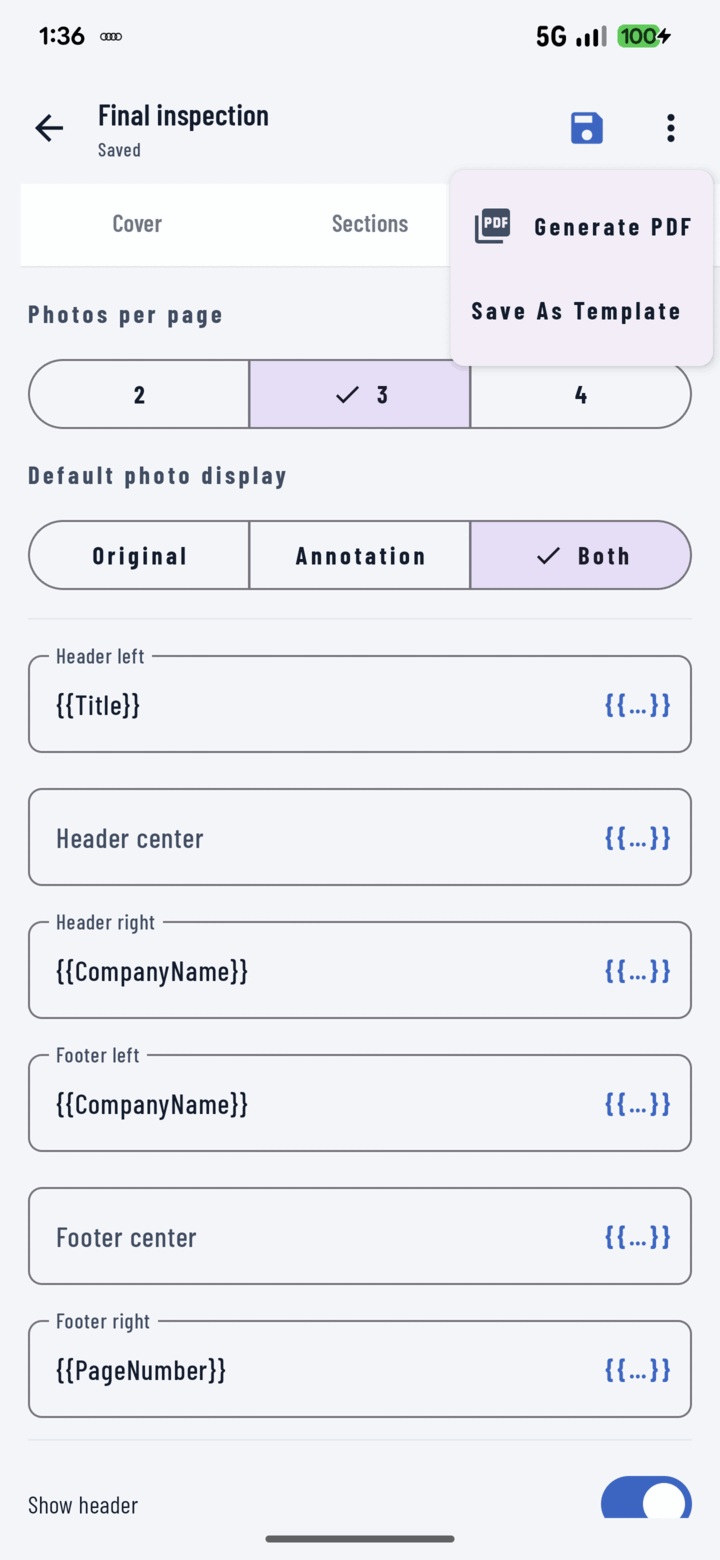
The report's overflow menu offers Save As Template so you can reuse its structure on future reports.
What a Template Saves (and Doesn't)
Saved: cover-page configuration, section structure (titles/subtitles/summaries), header and footer text with tokens, photos-per-page, display mode, all show toggles.
Not saved: the photos. A report created from the template pulls fresh photos from whichever project you're in — the format repeats, the content is current.
Maintaining Templates
- Outdated template? Delete it from the template picker.
- Want to iterate a format? Duplicate an existing report (Reports list → overflow → Duplicate), adjust, and re-save as a new template.
Related
- Use report templates — creating reports from templates
- Build a PDF report