
Reordering Sections
- Open the report in the editor and select the Sections tab.
- Each section row has up / down controls — tap to move it through the order.
- The PDF renders sections top-to-bottom in this order.
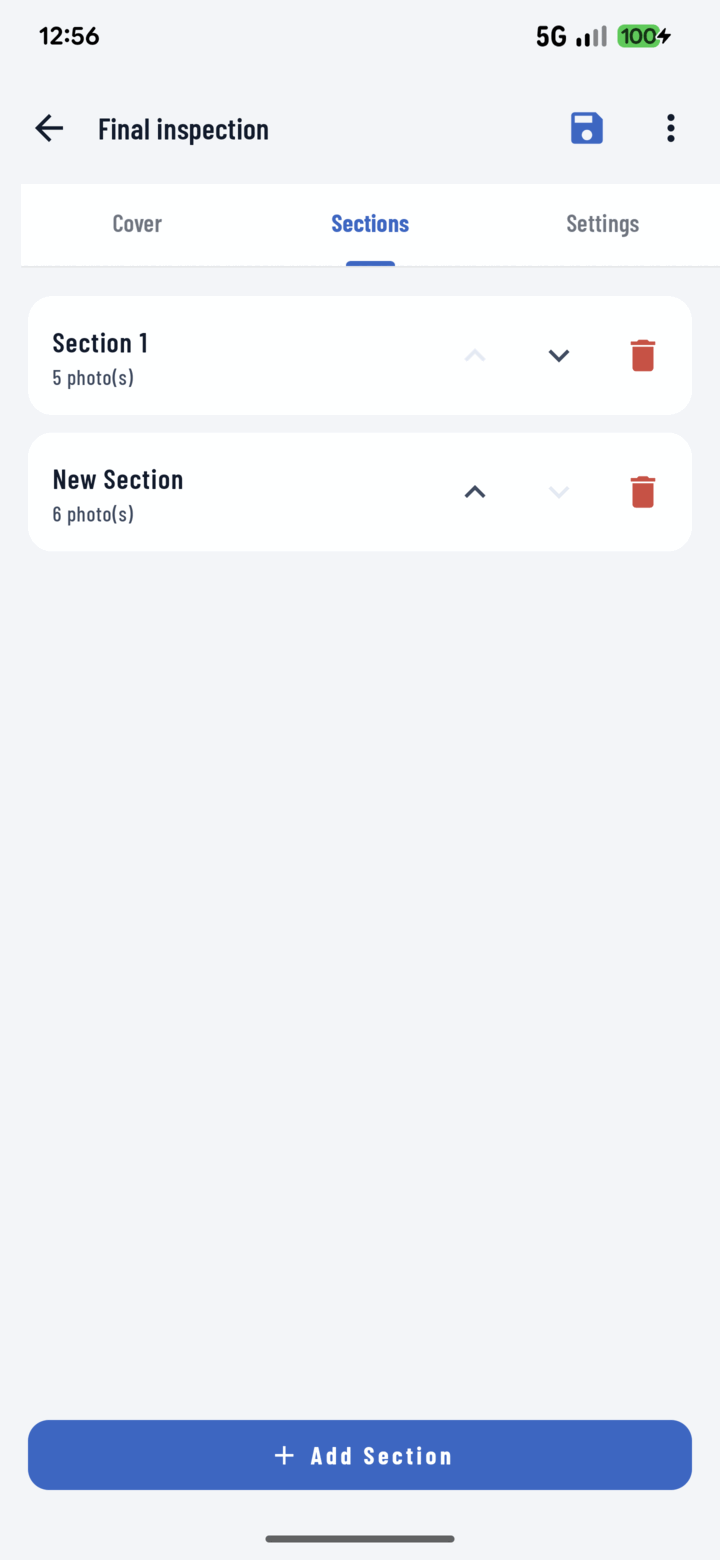
Use the up and down arrows on the Sections tab to reorder how sections appear in the PDF.
Renaming / Rewriting a Section
Tap the section to open its editor — title, subtitle, and summary are all editable any time. The report auto-saves as you work (watch the Saving/Saved indicator).
Deleting a Section
Tap the section's delete control — a confirmation dialog protects against fat fingers. Deleting a section removes it and its photo placements from the report; the photos themselves stay safe in the project library.
Ordering That Works
- Lead with what the reader cares about most: clients want visible progress first; adjusters want damage documentation first.
- Keep a consistent order week to week (that's what templates are for) — readers learn where to look.