
Steps
- Open the report in the editor → Sections tab → open the section.
- Find the photo and open its overflow menu → Edit.
- Set the overrides:
• Title — the caption headline ("North elevation — flashing complete")
• Description — supporting detail for the reader
• Display mode — Original / Annotation / Both for this photo (details) - Save — the overrides apply in this report only.
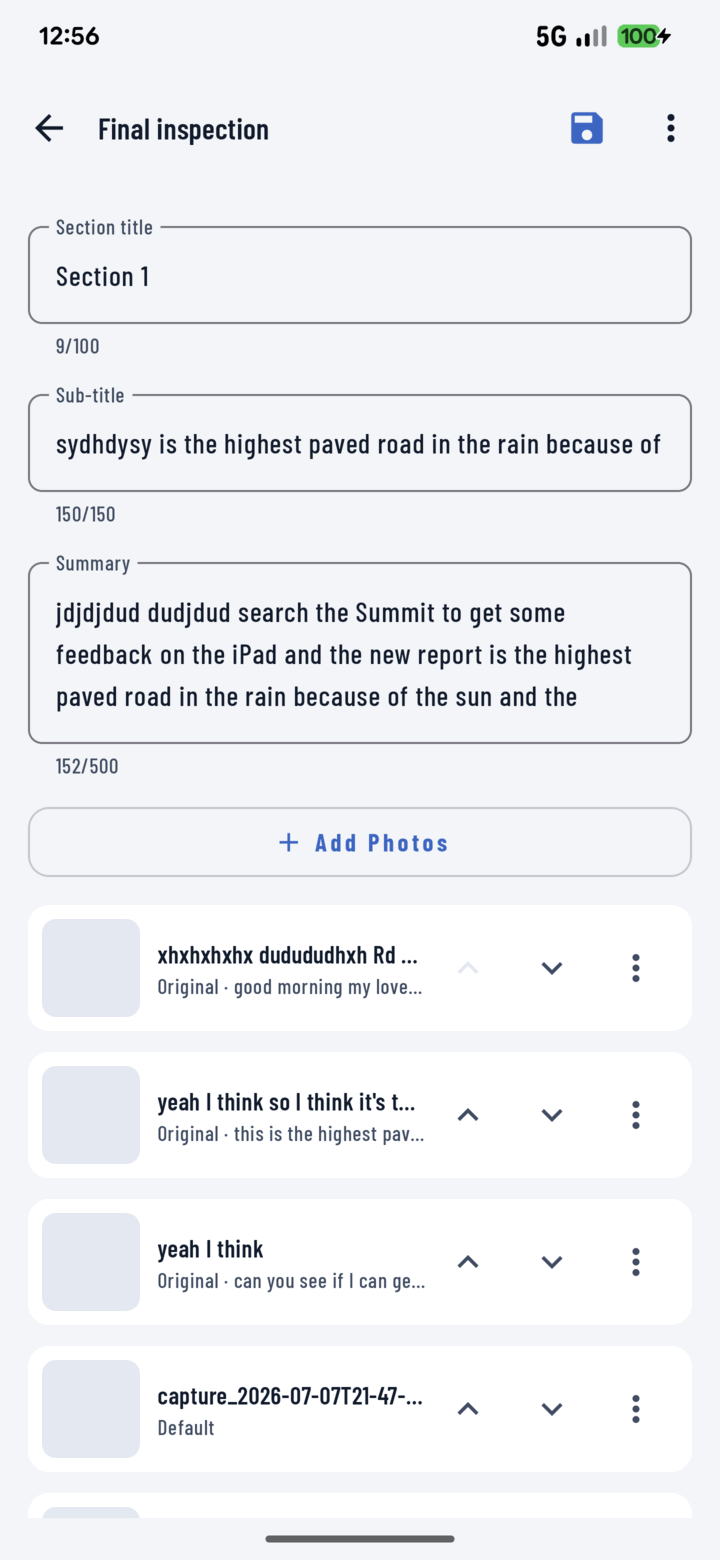
Open a section to edit each photo's caption inline alongside the section title, subtitle, and summary.
Overrides vs. Photo Notes
The photo's own notes and tags (set in the library) describe it for your team; report overrides caption it for the reader of this specific report. Same photo can say "unit 204 leak, second occurrence, check upstairs shower pan" internally and "Moisture damage — northeast bedroom ceiling" to the client.
Metadata Labels
Beyond captions, the Settings tab toggles automatic per-photo labels: photo numbers, photographer, date, GPS coordinates, and tags — useful metadata without typing anything.