
Uploading
- Open the project and go to the Documents tab.
- Tap the + button — the system file picker opens.
- Choose the file. A progress indicator shows the upload; failures show a dismissible error.
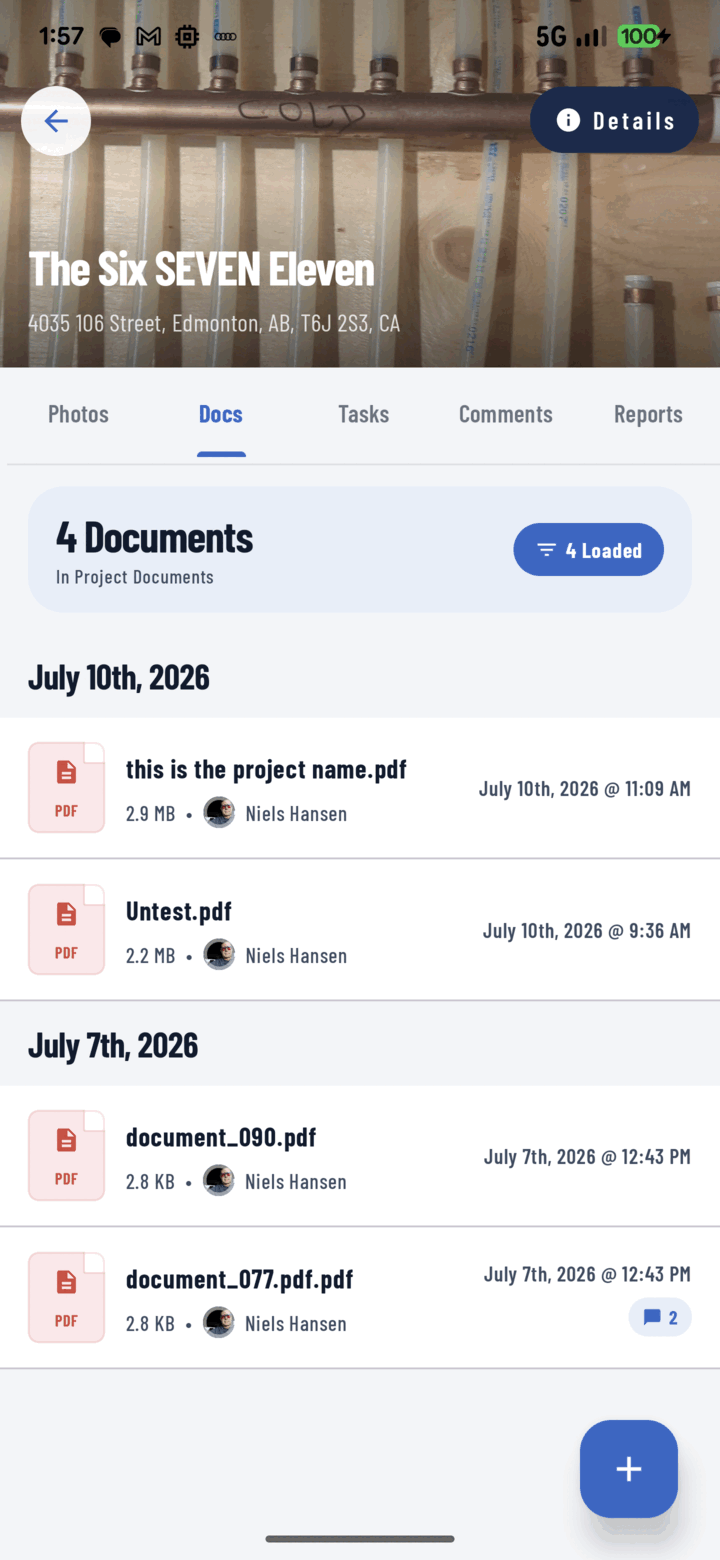
The Documents tab lists every file on the project; tap the + button to upload, or a row to open it.
You can also add tags at upload time, and rename or re-tag later.
Viewing
Tap any document:
- PDF — full page-by-page viewer.
- CSV — rendered as a scrollable table.
- Text files — plain text viewer.
- Word / Excel / PowerPoint — embedded preview.
- Anything else — tap Open externally to hand it to another app.
Inside the viewer: a comments panel (with @mentions) for discussing the document, a details tray (uploader, project, comment count), and Print and Open externally actions.
Organizing
- Filter documents by type, uploader ("My Documents" or specific operators), search term, and date range.
- Long-press for bulk actions: Share · Save to Device · Tag · Rename · Move to Project · Print · Assign to Task · Delete.
Related
- Create and assign tasks
- FAQ: Documents