
Steps
- Open the project → Documents tab → tap the document. It opens in the in-app viewer.
- Tap the Comments button in the viewer's action bar (it shows the existing comment count).
- The comments panel slides up — drag it between peek height (document still visible) and full height (reading a long thread).
- Type your comment. @mention a teammate to notify them (how mentions work).
- Send. Your comment is pinned to this exact document.
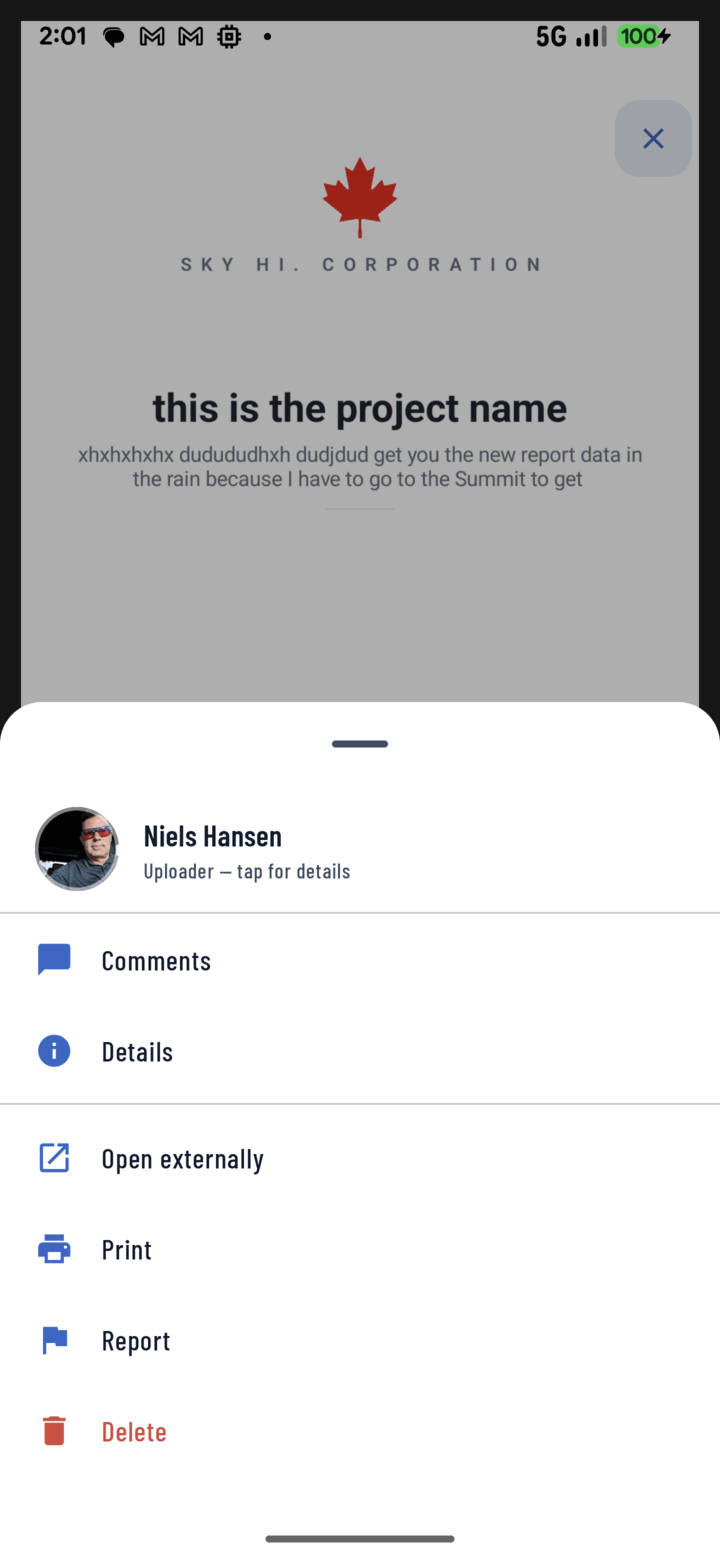
Open a document and tap Comments in its action menu to discuss it with the crew.
What Document Comments Are For
- Revision callouts: "@Mike — Revision B changes the footing detail, page 4."
- Expiry and status notes: "Permit expires end of month — inspection must happen before the 28th."
- Clarifications: questions on a contract clause or spec line, answered where the next person will look.
The document's row in the Documents tab shows its comment count, so a discussed file is visible at a glance.
Editing, Deleting, Contact
Same rules as everywhere in CrewBox: edit your own (labeled "edited"), owner/manager moderation on delete, and long-press any commenter's avatar for call / SMS / email.
Offline
Comments written offline queue on the device and post automatically on reconnect.