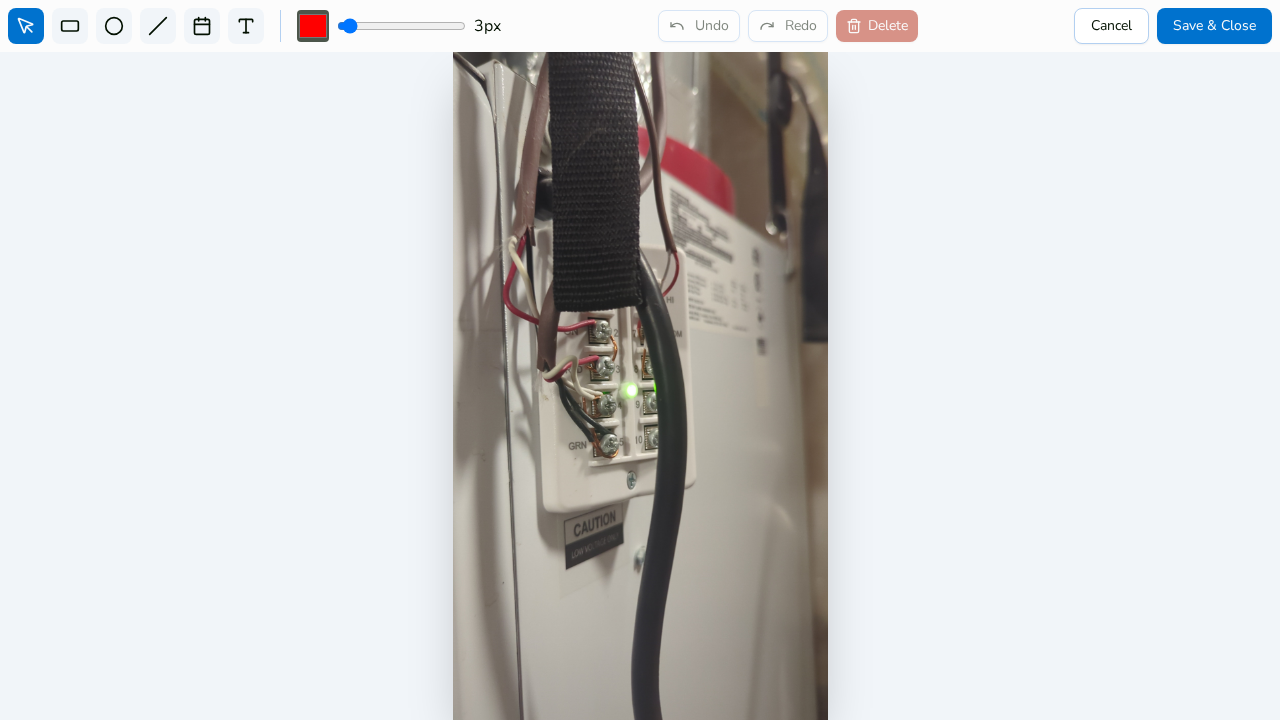
Steps
1. Open the annotation editor
In the photo viewer, click Annotate on a photo that already has markup (or add some first).
2. Switch to the Select tool
Choose Select from the toolbar and click the annotation you want to change.
3. Move it
Drag the selected annotation to a new position.
4. Resize with the corner handles
Drag any of the corner handles to resize. While resizing, a magnifier loupe gives you a 4× zoomed view for pixel-precise placement.
5. Rotate — hold Shift to snap
Rotate the selected annotation freely, or hold Shift while rotating to snap to 15° increments for clean, level angles.
6. Delete if it's wrong
With the annotation selected, use Delete selected to remove it. (Undo brings it back if you change your mind.)
7. Save & Close
Click Save & Close to commit your edits, or Cancel to leave the photo as it was.
Related