Steps
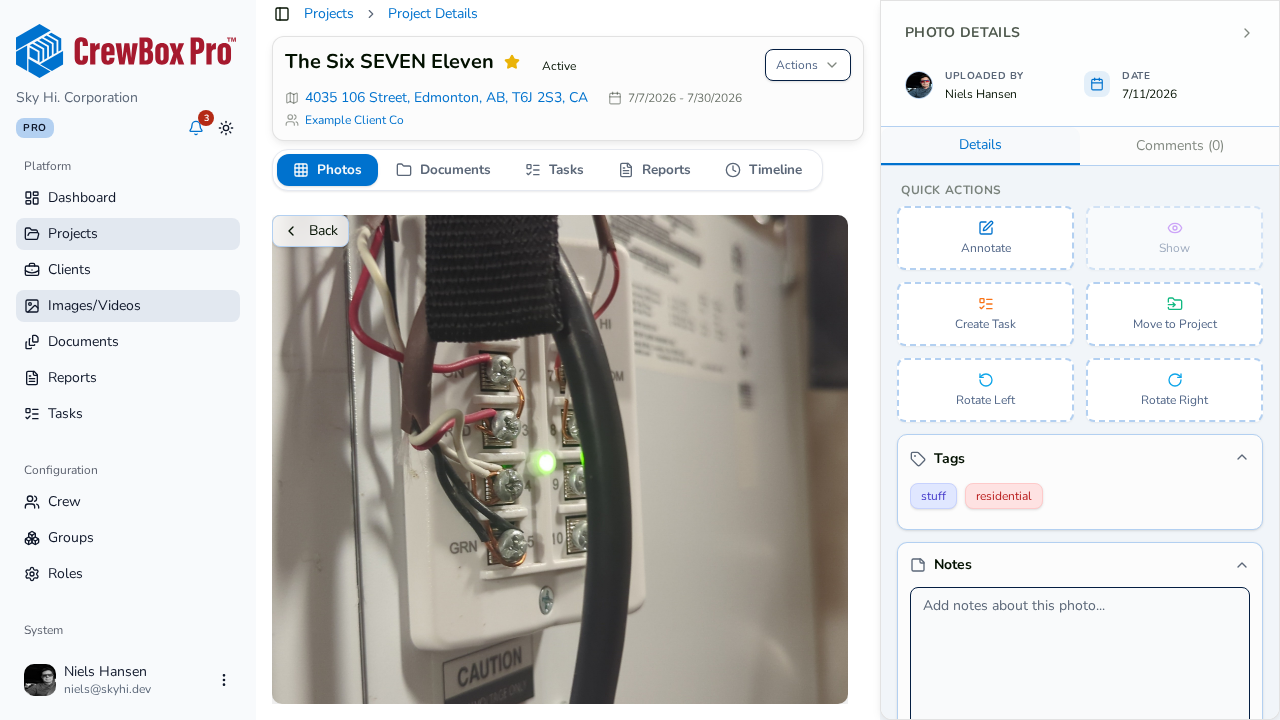
1. Open the photo
Click the photo to open it in the detail viewer.
2. Click Rotate Left or Rotate Right
In the viewer's Quick Actions, click Rotate Left or Rotate Right. The image rotates 90° in that direction.
3. Annotations rotate too
Rotation is applied to the image and its annotations together, so circles, arrows, and text stay pinned to the same spot on the photo. Nothing drifts.
4. A new version is saved
Each rotation produces a new file version of the photo — the rotated result is what the rest of the console (grids, reports, sharing) will use.
Tips
- Rotate as many times as needed; each click is another 90° step.
- Rotation is a photo action — videos don't offer it.