
Steps
1. Open the Photos tab
Click into a project. It opens on the Photos tab, where every photo and video in the project lives.
2. Choose how to group the media
Use the Group by control in the toolbar to organize the grid by:
- Day — media grouped under the date it was taken
- Label — media grouped under its tags
- Uploader — media grouped by the crew member who added it
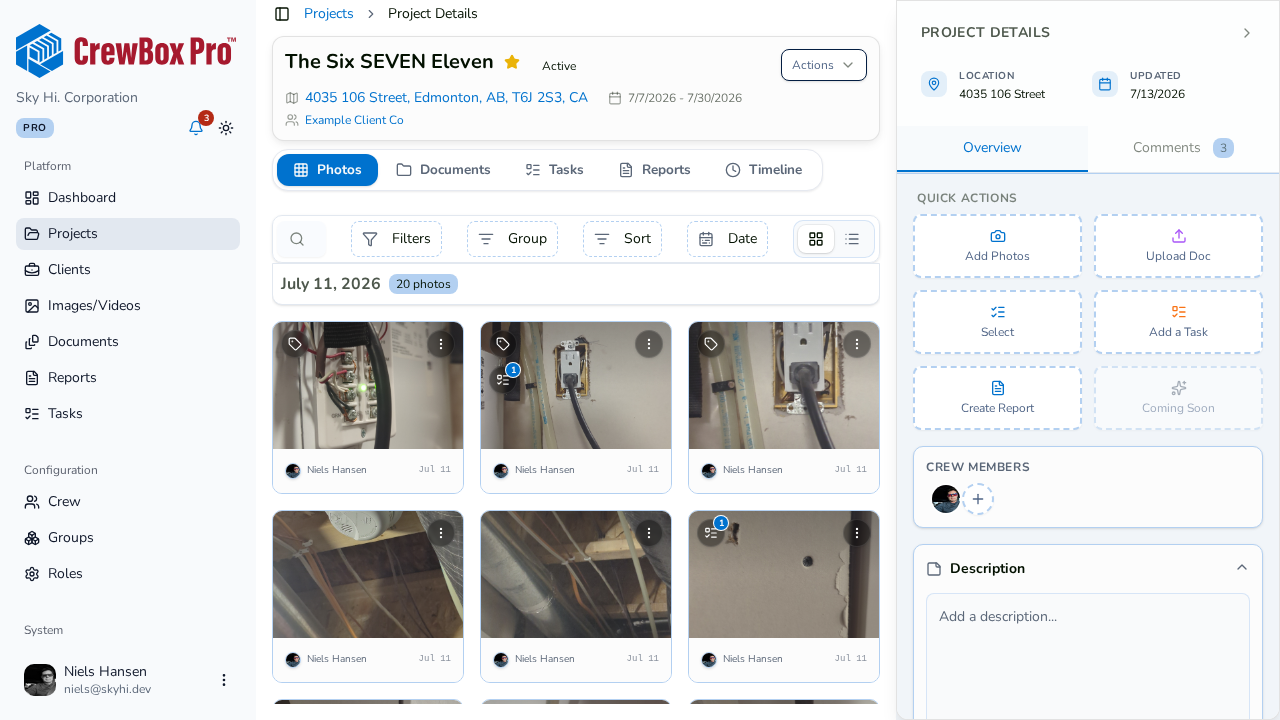
3. Pick grid or list view
Use the view toggle to switch between a photo grid and a list. The list view shows the preview (videos carry a play badge), file name, date, uploader, active-task count, and tags.
4. Scroll — more loads automatically
The Photos tab uses infinite scroll: as you reach the bottom, the next page of media loads automatically. No pagination buttons to click.
5. Open anything in the viewer
Click any photo or video to open it in the full detail viewer, where you can read details, add notes, tag, and annotate.