
Enter selection mode
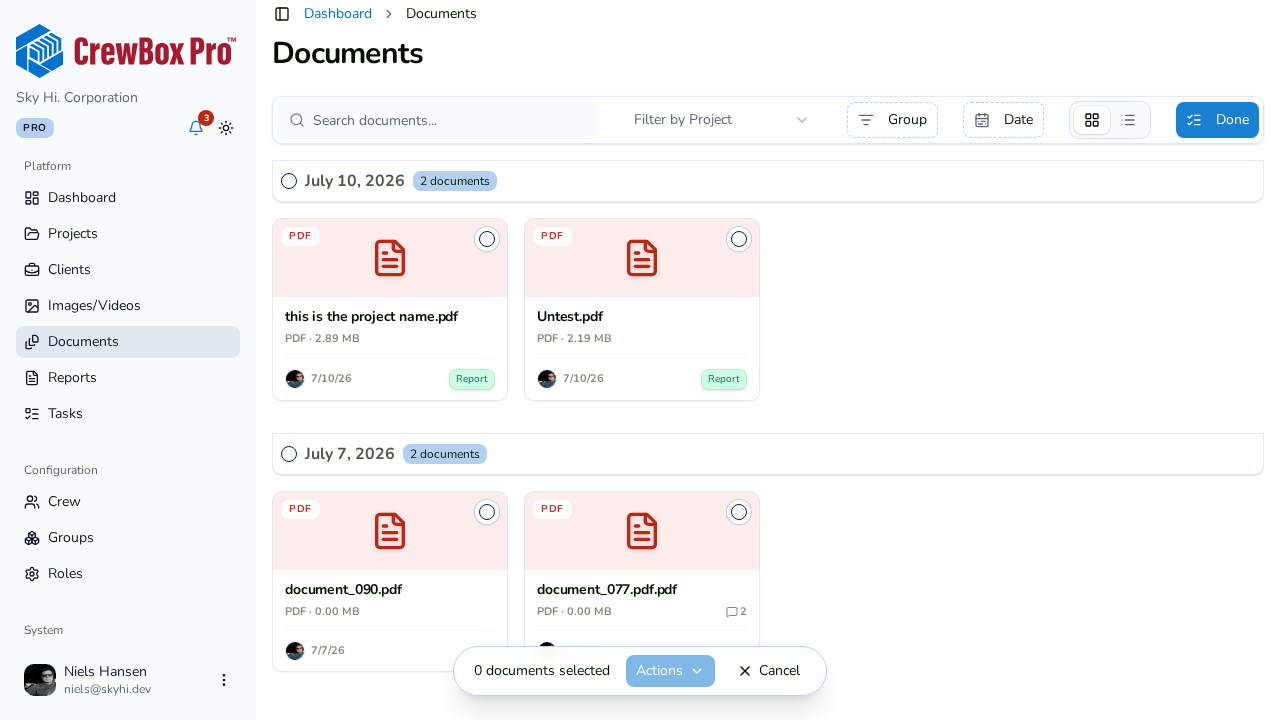
- Open the Documents tab (or the global Documents page).
- Click Select in the toolbar.
- Click documents to add them to the selection. Group-select headers let you grab an entire day, tag, or uploader group in one click.
- Click Done when you want to leave selection mode.
Bulk actions
With documents selected, the action bar offers:
- Share — share the selected files.
- Save to Device — download the selection.
- Tag — apply tags across every selected document.
- Rename — available when exactly one document is selected.
- Move to Project — re-file the selection into another project.
- Print — for PDFs, images, and text files.
- Assign to Task — attach the selection to an existing task.
- Create New Task — open the task dialog with the documents pre-attached; the selection must be within one project.
- Delete — remove the selection, with confirmation.
Where this works
Selection mode works in the project Documents tab and on the global Documents page alike.