
Open an Office file
- Go to your project's Documents tab (or the global Documents page).
- Click the document card, or click View in its action menu.
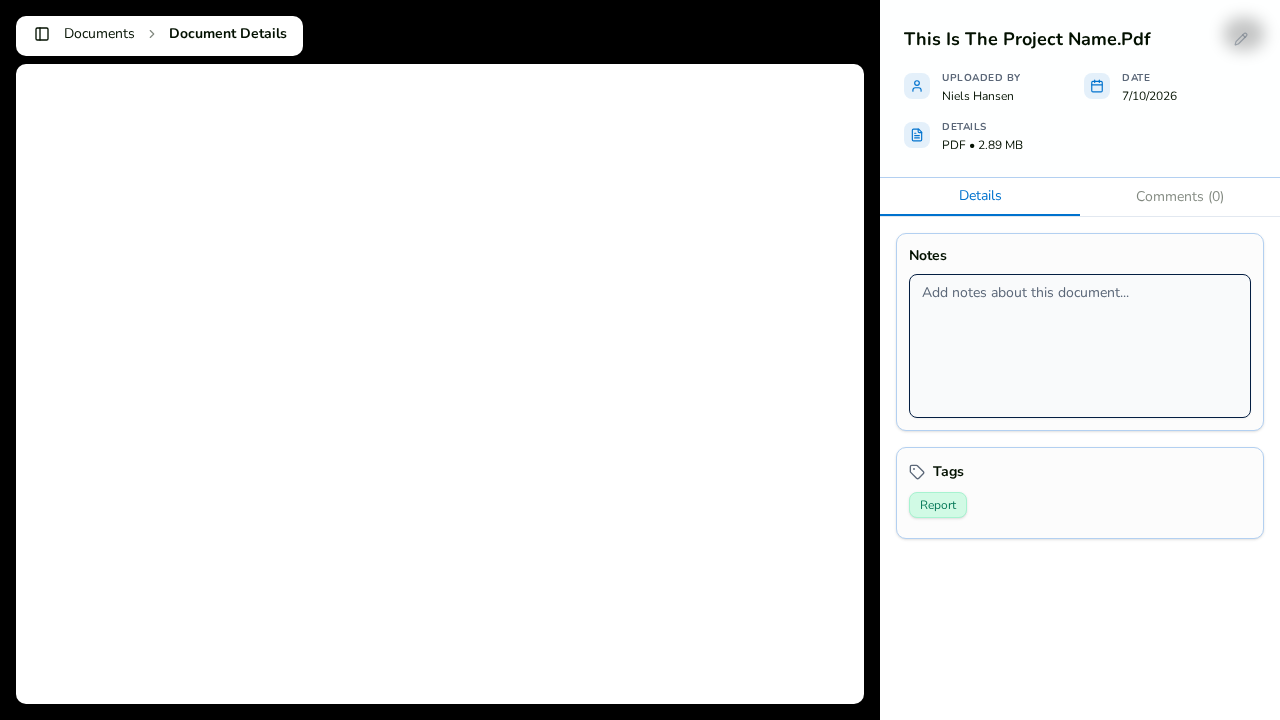
- The file opens in the full-screen document viewer, rendered through an embedded Office viewer.
This works for:
- Word documents
- Excel spreadsheets
- PowerPoint presentations
- CSV files
PDFs render natively in the browser, and images, videos, and text files preview inline — no Office viewer needed.
Navigate while previewing
- Click the previous/next buttons or press the arrow keys to move through the project's documents without leaving the viewer.
- Use the collapsible sidebar to see the uploader, date, type, and size while you read.
Download the original
If you need the file itself — or if a format can't be previewed — click Download File to save it to your device. Formats without a built-in preview always offer this fallback.