
Opening Notifications
Tap the bell in the top header — its badge shows your unread count and updates automatically while the app is open.
The Four Tabs
| Tab | What's in it |
|---|---|
| All | The complete feed, newest first |
| Mentions | Comments where someone @-mentioned you — the never-ignore tab |
| Assignment | Tasks assigned to you (or taken off your plate) — your incoming work queue |
| Tasks | Other activity on your tasks: status changes, updates, comments |
Each tab carries its own unread count.
Acting on a Notification
- Tap it — you go straight to the thing: a mention opens the photo with its comment thread up; an assignment opens the task detail; photo activity opens the viewer.
- Reading marks it — the unread dot clears.
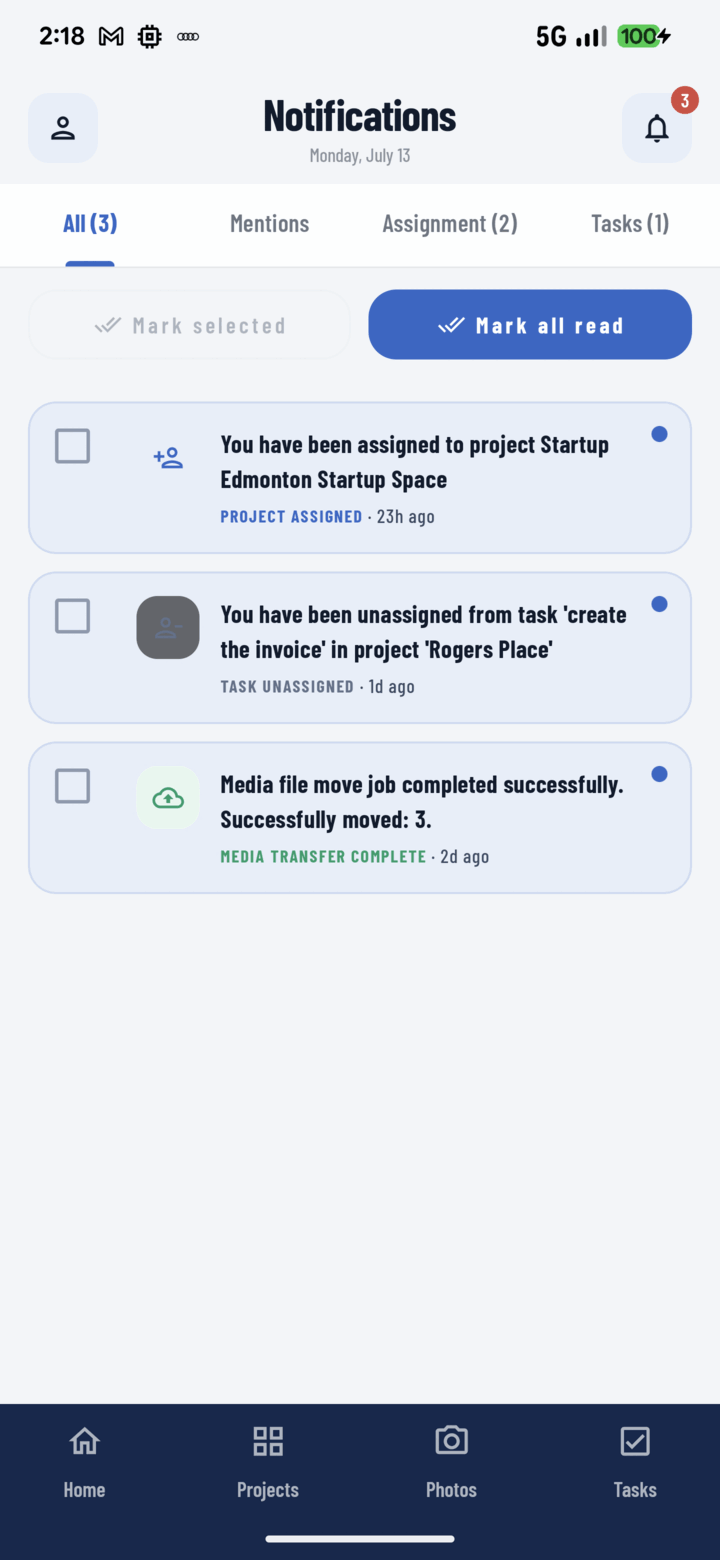
The Notifications screen collects project, assignment, and task alerts with quick mark-read controls.
Clearing in Bulk
- Select several (checkboxes) → Mark selected.
- Mark all — zero the current tab in one tap. A week of backlog clears in two gestures.
Notes
- Notification text arrives in your app language (English, Spanish, or French).
- Notifications appear inside the app — check the bell when you open CrewBox; there are no lock-screen alerts in the current release.
- "All caught up" means exactly that.
Related
- Mention a crew member
- Reassign a task
- FAQ: Notifications