Steps
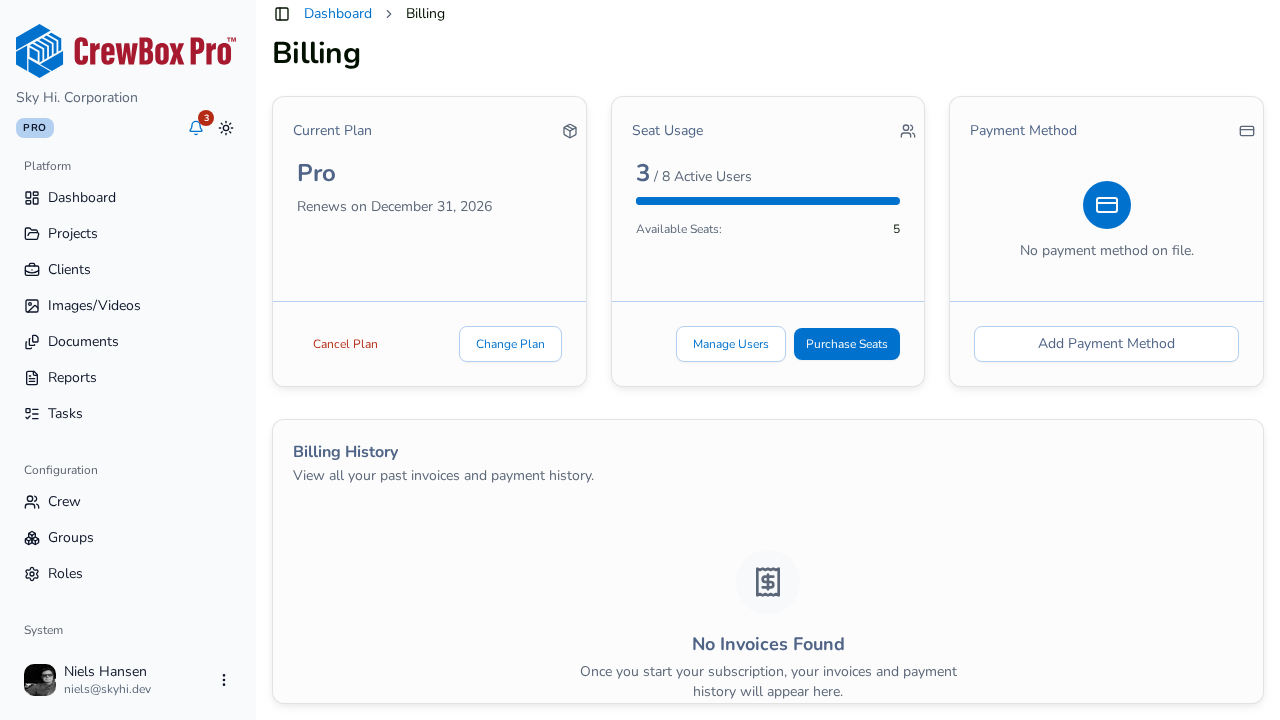
1. Open the Purchase Seats dialog
Go to the Billing page and click Purchase Seats on the Seat Usage card. You'll also be routed here from the Crew Members page — when your workspace is full, the invite button becomes Purchase User Seats.
2. Choose how many seats
Enter the number of seats you want to add in the count input.
3. Review the cost
The dialog shows the per-seat cost for your billing cycle (monthly or annual) and the computed total for your chosen count. Note the disclaimers: the charge is billed on your next billing cycle, and taxes may apply.
4. Confirm the purchase
Confirm the dialog to add the seats. Your Seat Usage card updates with the new total and the purchased add-on seat count.
5. Invite your new crew
Head to the Crew Members page — with seats now available, the New Crew Member button is back and you can send invitations.
Related