
Steps
1. Open the Crew Members page
In the sidebar, go to the Crew Members page (Users). The header shows your seat usage against your plan's limit — base seats plus any purchased seats.
2. Check for an open seat
If seats remain, you'll see a New Crew Member button. If the workspace is full, the button becomes Purchase User Seats and routes you to Billing — add seats first, then come back.
3. Click New Crew Member
Click New Crew Member to open the invite modal.
4. Fill in personal information
Enter the teammate's details — all four fields are required:
- First name
- Last name
- Phone
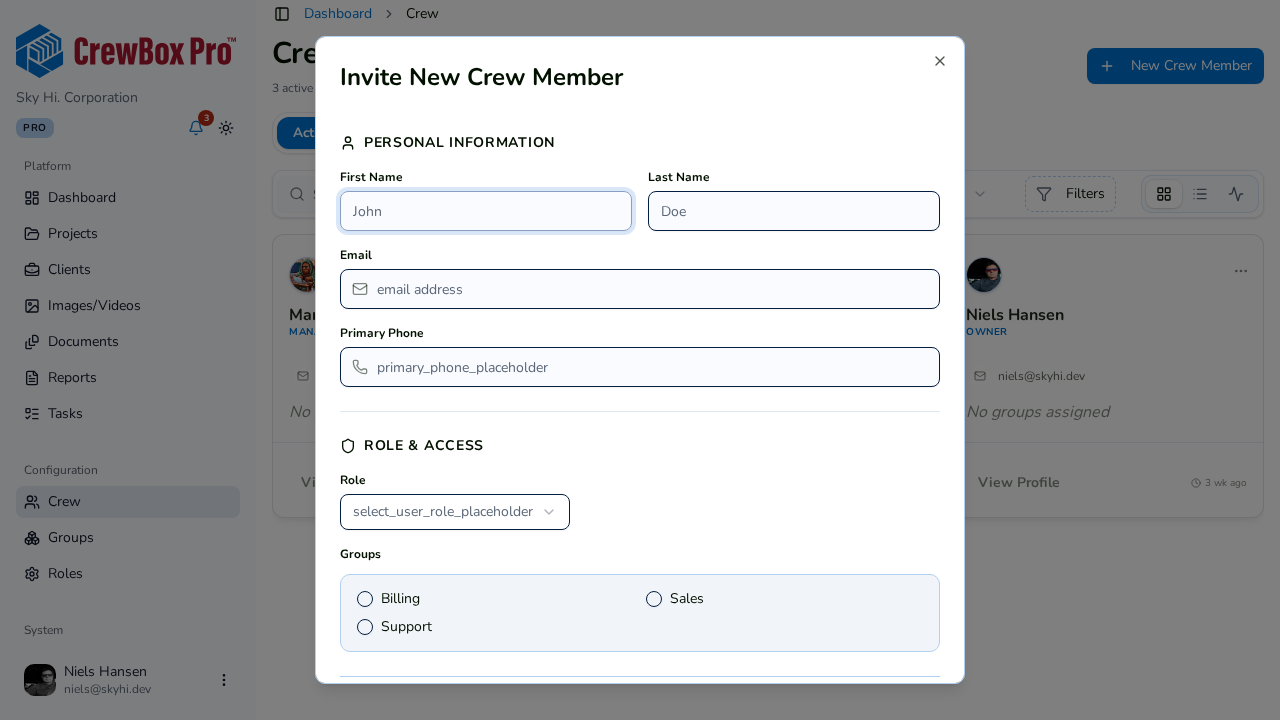
5. Set role and access
Under Role & Access:
- Pick a Role from the select (required) — this controls what the person can do in the console.
- Check any Groups the person belongs to in the checkbox grid (teams/departments).
6. Send the invitation
Save the modal to send the invite. The new teammate appears in the Invited tab with an "Invite Pending" status until they accept and join the team.