
Steps
1. Open the Crew Members page
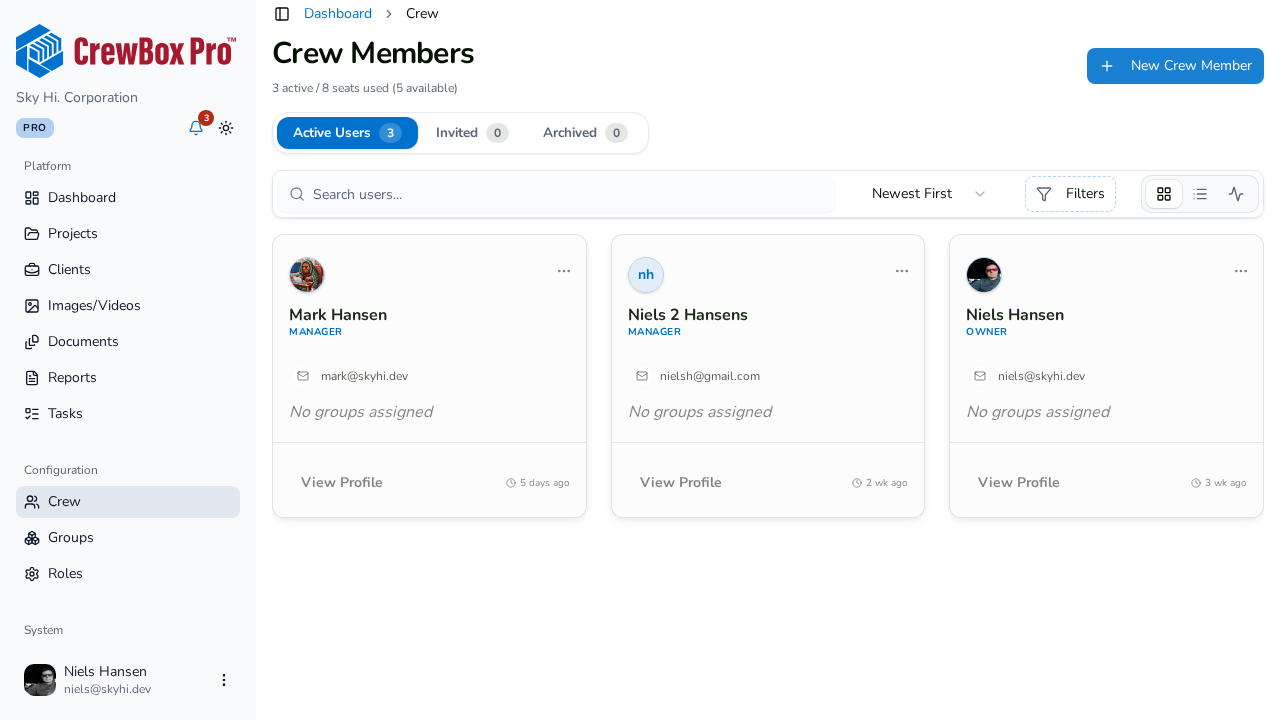
Go to the Crew Members page (Users) from the sidebar. Three tabs with counts split the directory:
- Active Users — everyone who has joined the team.
- Invited — pending invitations.
- Archived — archived users and revoked invitations.
2. Find the person you need
- Search by name or email.
- Sort by Newest First (default), Name, or Role.
- Filter by one or more roles with the role filter.
- Switch between grid, list, and timeline views — the timeline shows "User Joined Team" cards in order.
3. Read the crew card
Each card shows the avatar, name, role (or "No Role"), email (click to mail), group badges, and how long ago they joined. Click View Profile to open the full profile page.
4. Edit a crew member
From the card menu, click Edit User. The edit modal has two sections:
- Personal information — first name, last name, email, phone (all required).
- Role & Access — the Role select (required) and the Groups checkbox grid.
Save to apply the changes.
5. Contact or remove
The card menu also offers Call User and Email User quick actions. To take someone out of the workspace, click Remove User and confirm in the dialog — removal frees up their seat.