
Steps
1. Open a crew member's profile
On the Crew Members page, click View Profile on a crew card (or View Details in the card menu).
2. Read the header and summary bar
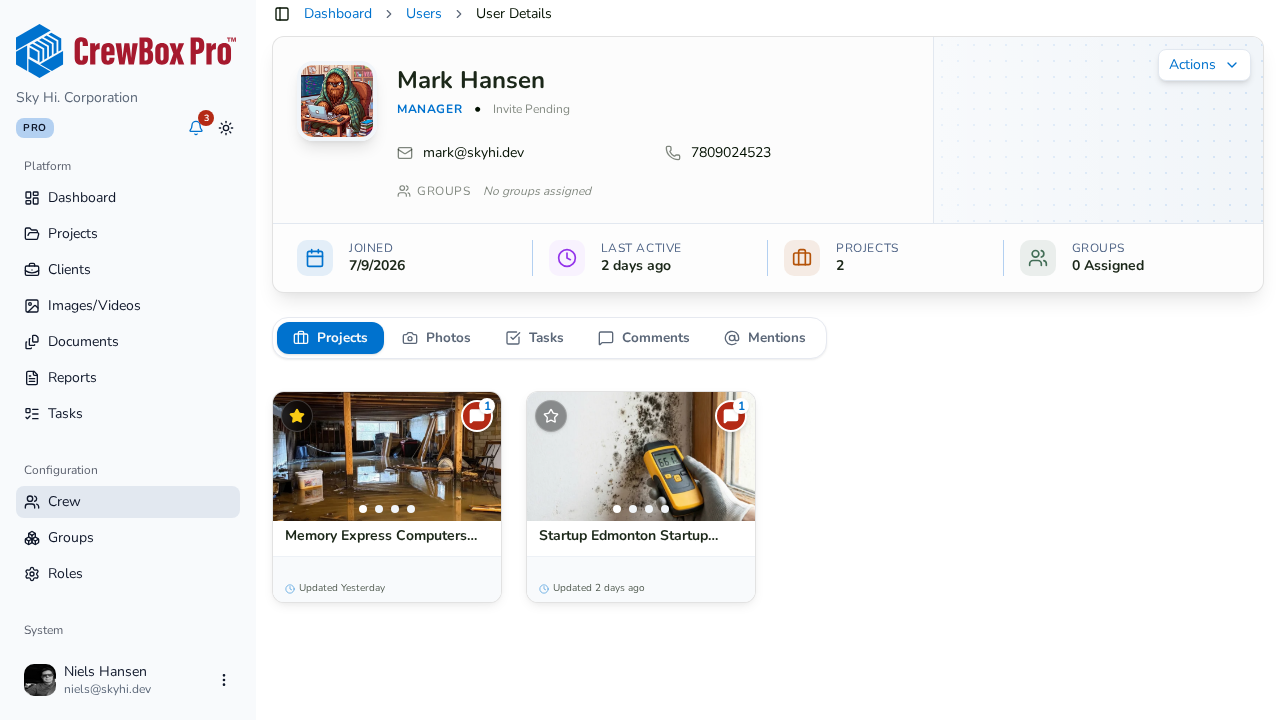
The header card shows the avatar, name, role, status ("Joined Team" or "Invite Pending"), email and phone links, and group badges, plus an actions menu (edit, call, email, remove). Below it, the summary bar gives the quick numbers: Joined date, Last Active, Projects, and Groups.
3. Browse the five activity tabs
The profile splits the person's work into five tabs:
- Projects — their assigned projects as cards.
- Photos — everything they've captured, in a paginated grid (25 per page); click any photo to open it in the media viewer.
- Tasks — their task assignments (25 per page) with status, priority, and due-date context, linked to the source project.
- Comments — their comment history (10 per page), each deep-linked to the conversation it came from.
- Mentions — every comment that @-mentioned them.
4. Follow the links
Use the tabs to answer real questions: click into a photo to review their site documentation, open a task to check its status, or follow a comment link to the discussion. If the Mentions tab is empty you'll see "No one has @-mentioned this crew member yet."