
Sign In
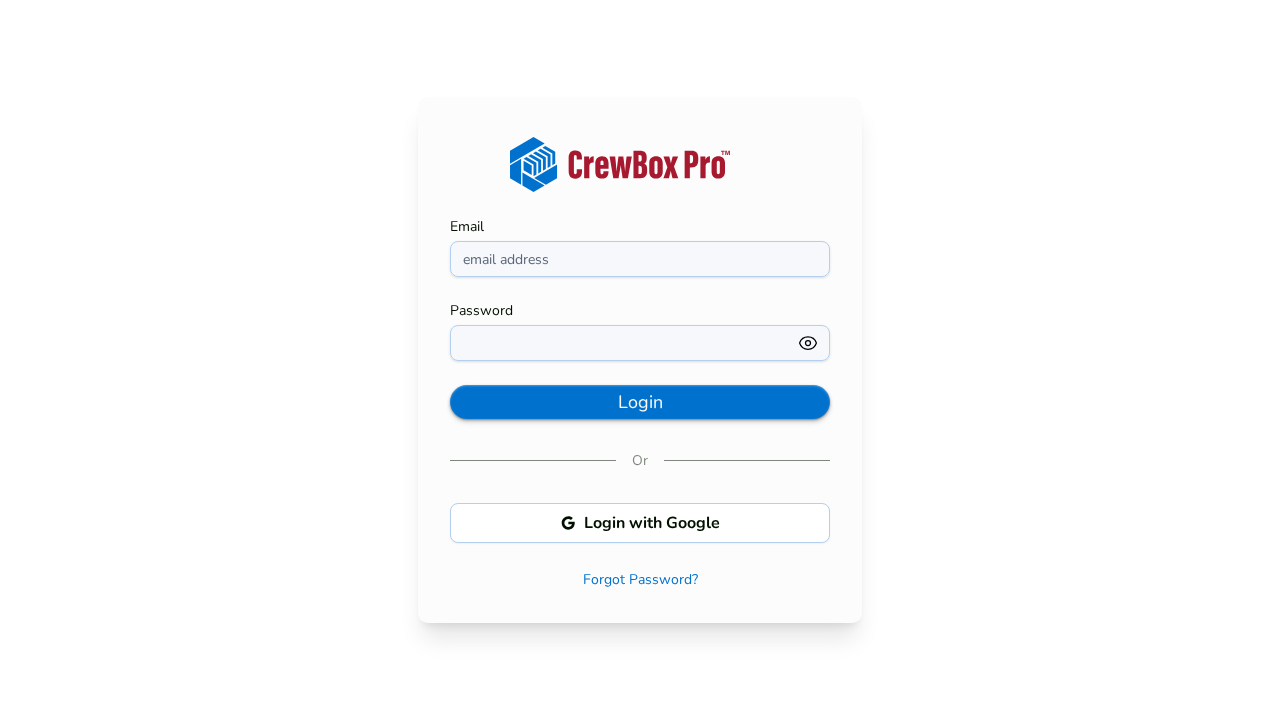
- Open the CrewBox login page.
- Below the email and password fields, under the Or divider, click Continue with Google.
- Your browser is sent to Google's sign-in page. Choose your Google account and approve the request (CrewBox asks only for your name, email, and profile).
- Google returns you to CrewBox, which finishes signing you in and opens the Dashboard.
Good to Know
- CrewBox never sees your Google password. The sign-in is completed securely on CrewBox's servers — your Google credentials and tokens are never handled by the browser console.
- Your language follows you. If you've saved a preferred language (English, Spanish, or French), it's applied the moment you land on the dashboard.
- You stay signed in. Sessions persist across browser restarts automatically — there's no "remember me" box because you don't need one.
Troubleshooting
- If Google sign-in fails, you're returned to the login page — try again, or sign in with your email and password instead.
- Make sure you pick the Google account whose email matches your CrewBox account.