
Steps
1. Toggle from the sidebar
The fastest route: click the theme toggle in the sidebar header. The console flips between dark and light mode instantly.
2. Or set it from your profile
For the settings route:
- Click your avatar in the sidebar footer and choose Account settings.
- Open the Profile tab.
- Under Appearance, click the Light or Dark visual card.
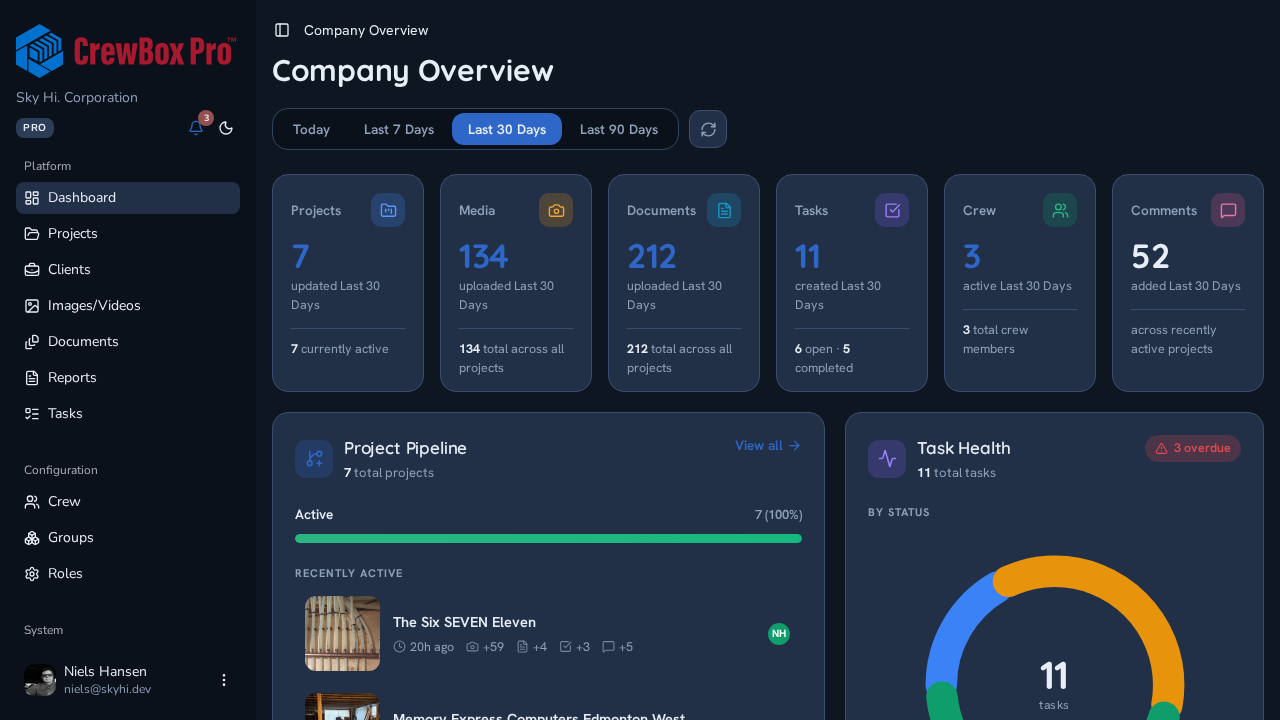
The theme applies the moment you click — no save button, no reload.
3. Trust it to stick
Your appearance choice persists across sessions, so the console comes back in the theme you left it in, whichever way you set it.