
Open Your Profile Settings
- Click your name/avatar in the sidebar footer.
- Click Account settings in the menu.
- You land on the Profile tab of Account Settings.
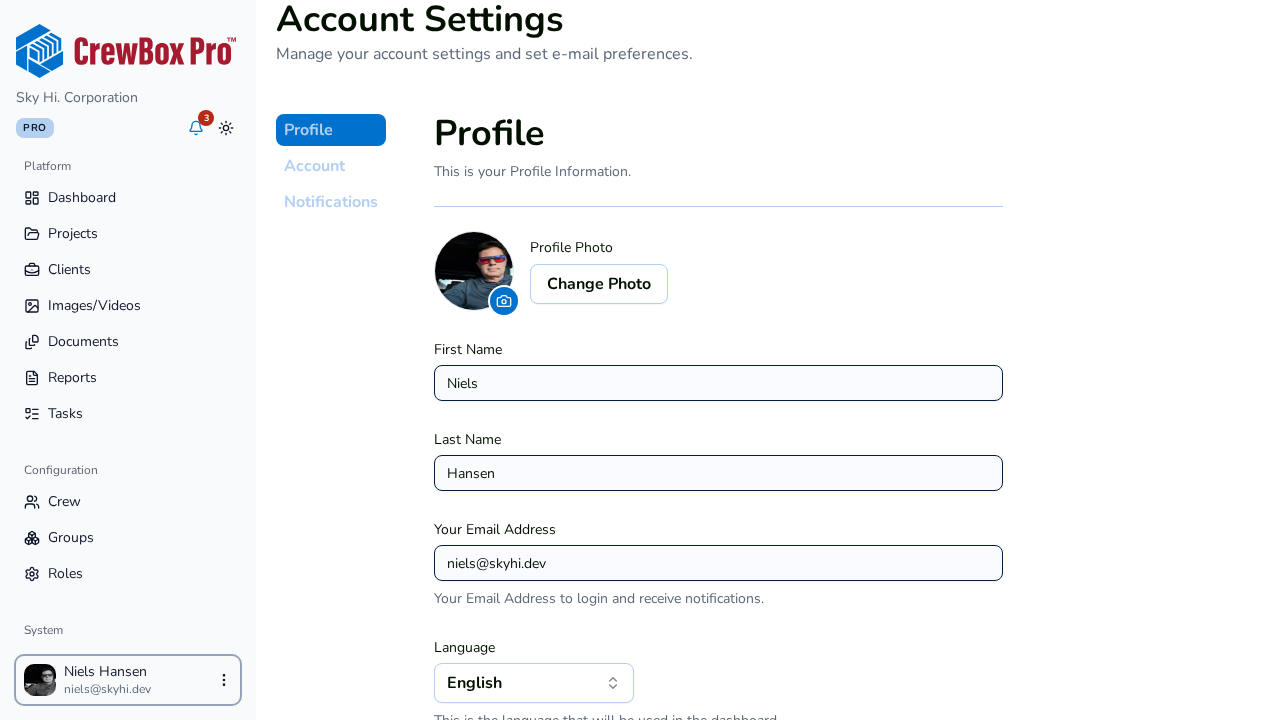
Change Your Avatar
- Use the avatar upload to pick an image from your computer.
- The file must be an image up to 2 MB — the preview updates instantly.
Until you upload one, CrewBox shows an initials-based avatar generated from your name.
Update Your Details and Preferences
- First and last name and email.
- Language — English, Spanish, or French; the console switches live, no reload needed.
- Timezone — North American zones: Pacific, Mountain, Central, or Eastern.
- Date format — pick how dates display throughout the console (MM-DD-YYYY is the default).
- Appearance — click the Light or Dark visual card; the theme applies instantly and persists across sessions. (You can also flip the theme any time from the toggle in the sidebar header.)
Save the form to persist your changes.
Good to Know
- There is no password field on the profile — to change your password, use the Forgot password flow from the login page.
- Workspace owners see an extra Account tab for company-wide settings like the company logo, name, description, website, and primary contact.