Steps
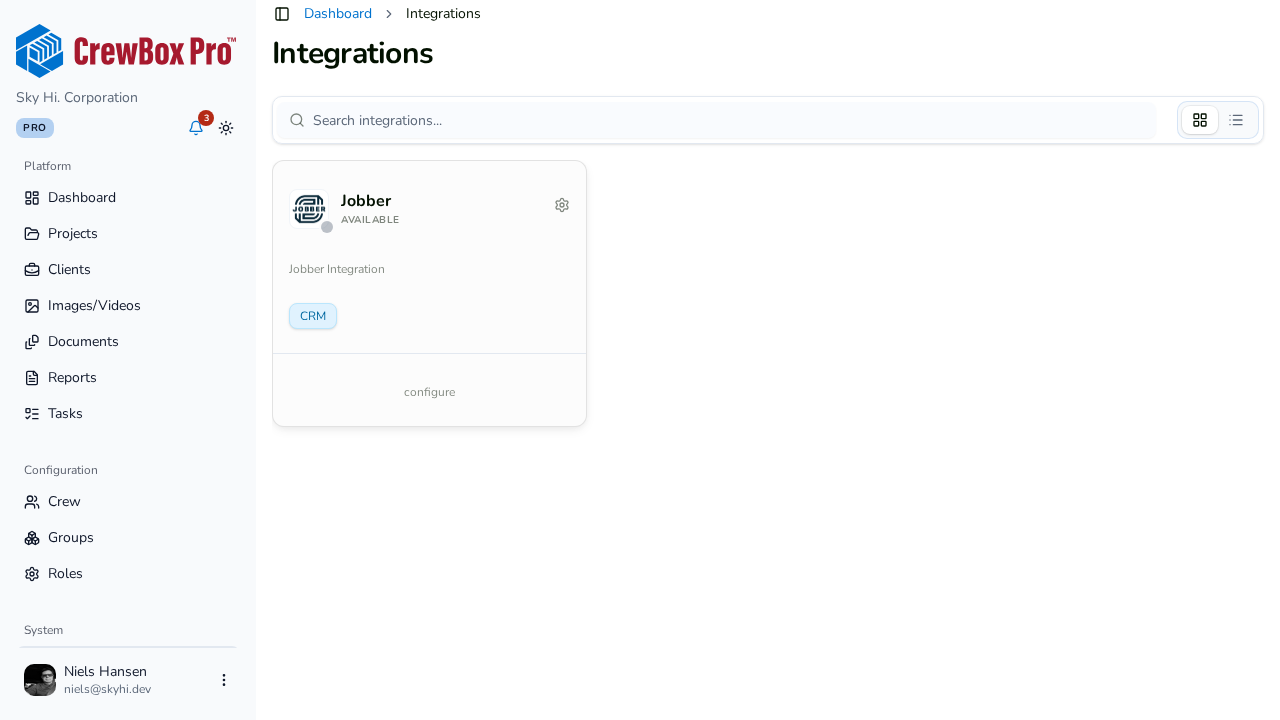
1. Open the Integrations page
Go to the Integrations page from the sidebar. Each available integration is listed with its logo, name, status, description, and tags. Statuses are color-coded: Connected, Disconnected, Error, or Pending.
2. Open the integration's detail page
Click Configure on the integration you want. The detail page adapts to the current status.
3. Connect
If the integration isn't connected, click Connect to {name}. You're redirected to the provider's authorization flow — sign in and approve access there, and you'll return with the integration marked Connected.
4. Sync your clients
Once connected, click Re-sync Clients to pull the provider's client list into CrewBox. Run it again anytime the provider's data changes and you want CrewBox to catch up.
5. Maintain the connection
Two more actions are available while connected:
- Refresh Credentials — renews the authorization if the connection shows an Error or Pending status, or if syncing starts failing.
- Disconnect — severs the link with the provider.