
Steps
1. Open the Clients page
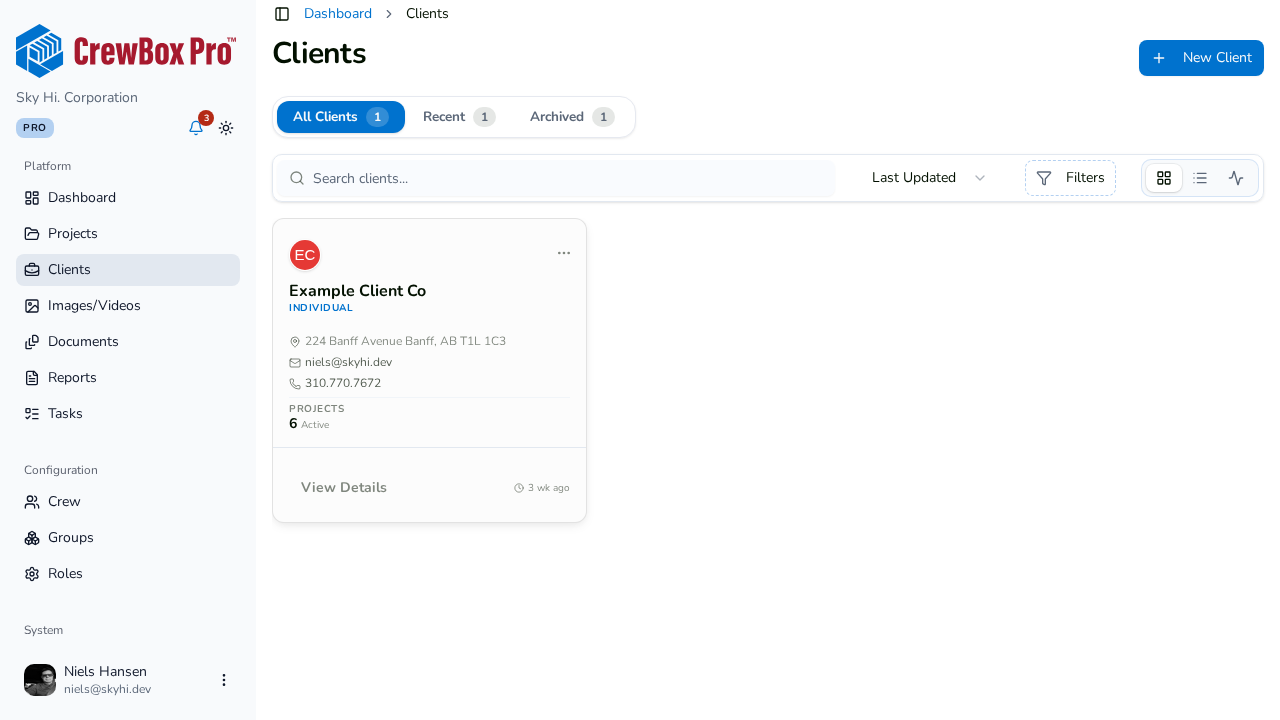
Go to the Clients page from the sidebar. Three tabs split the list:
- All Clients — everyone.
- Recent — clients added in the last 30 days.
- Archived — clients you've archived.
2. Search and sort
- Search matches client names and contact details.
- Sort by Last Updated (default), Newest, or Name.
- Use the status filter to show only Active or Inactive clients.
3. Pick a view
Switch between grid, list, and timeline views. The list paginates as you scroll, so large client books stay fast.
4. Read the client card
Each card shows an avatar colored by the client's category, the name and category, the address, email and phone, and an active-project count (for example, "3 Active").
5. Act straight from the card
The card and its menu include quick actions:
- Call Client — dials the primary contact's phone.
- Email Client — opens a mail draft to the primary contact.
- View in Google Maps — opens the client's address in Google Maps (the address on the card links there too).
- Plus View Details, Edit Client, View Projects, Assign Projects, and Archive Client.