Steps
1. Find the client
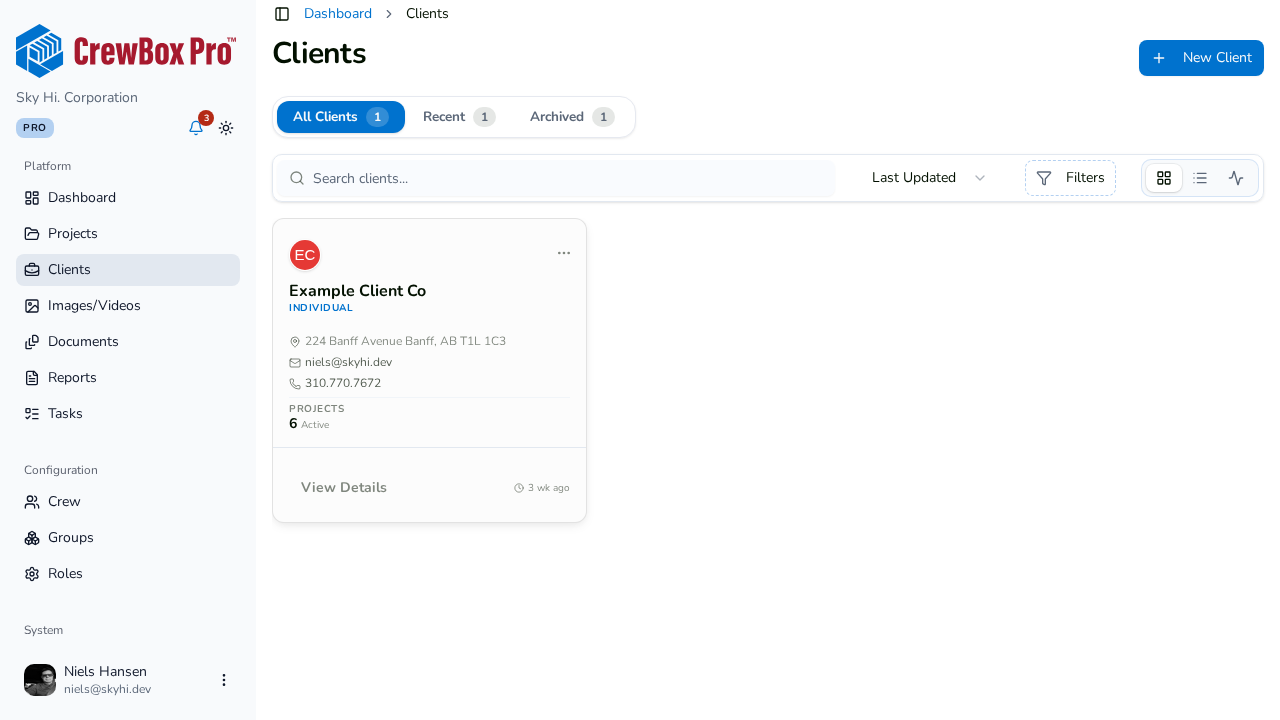
Go to the Clients page and locate the client with search, sorting, or the status filter.
2. Open the card menu
Click the menu on the client's card.
3. Click Archive Client
Choose Archive Client. A confirmation dialog appears — confirm to archive. The client leaves the All Clients view.
4. Find archived clients later
Click the Archived tab on the Clients page to see everything you've archived. The client's details, notes, and project history stay intact.
5. Delete permanently (if you must)
Archiving is the safe default. If you need to remove a client entirely, open the client's detail page and use Delete from the actions menu — it also asks for confirmation. Prefer archiving when there's any chance you'll need the client's records again.
Related