
Link the Client
- Open the project.
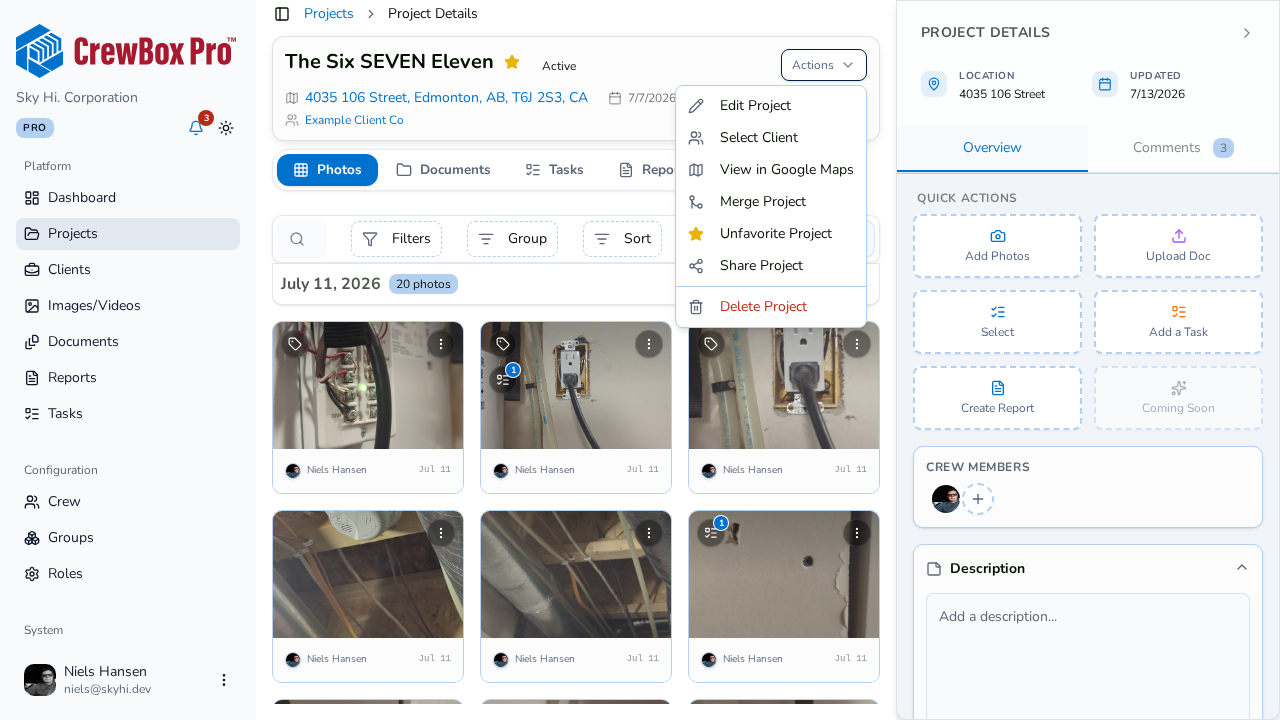
- In the project header, open the actions menu and click Select Client.
- In the client picker, use the search box to find the client record.
- Click the client to select them and confirm.
The picker is single-select — choosing a different client later replaces the current link.
Where the Client Shows Up
- Project header — the client appears in the meta row alongside the address, dates, and category, and links straight to the client's page.
- Project cards — hover-expand a card on the Projects page and the preview shows the client and category.
Before You Start
The picker searches your existing client records — if the client isn't in CrewBox yet, add them first from the Clients page.