
Edit the Project Details
- Open the project.
- In the project header, open the actions menu and click Edit Project.
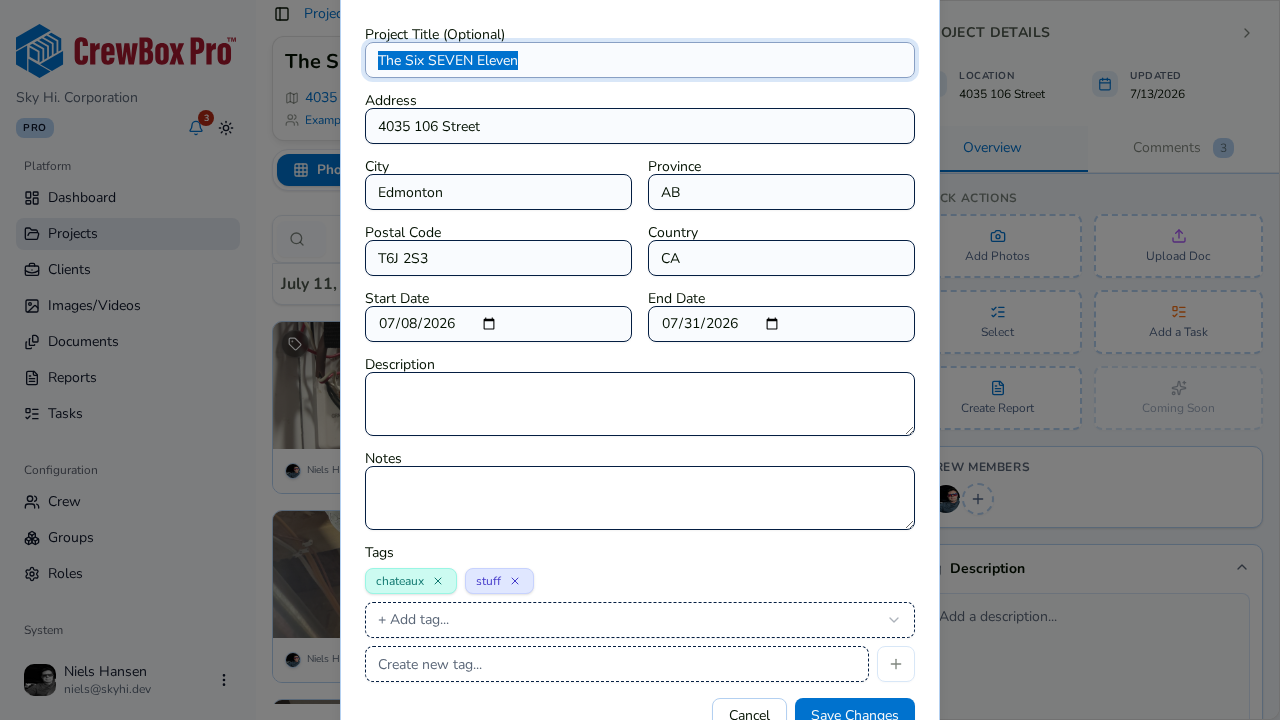
- The edit modal opens with the project's current values — update the Title, Address (with autocomplete), City, State/Province, Zip/Postal code, Country, Start/End dates, Description, Notes, or Tags.
- Save your changes.
Quick-Edit the Description from the Sidebar
You don't need the full modal for a description tweak:
- In the project's right-hand sidebar, expand the Description accordion.
- Edit the text directly.
- Click anywhere outside the field — the description saves automatically on blur.
Understand the Status Badge
The color-coded badge next to the project name shows where the job stands:
- Active — work is in progress.
- Completed — the job is finished.
- On Hold — work is paused.
- Archived — the project is retired from day-to-day use.