
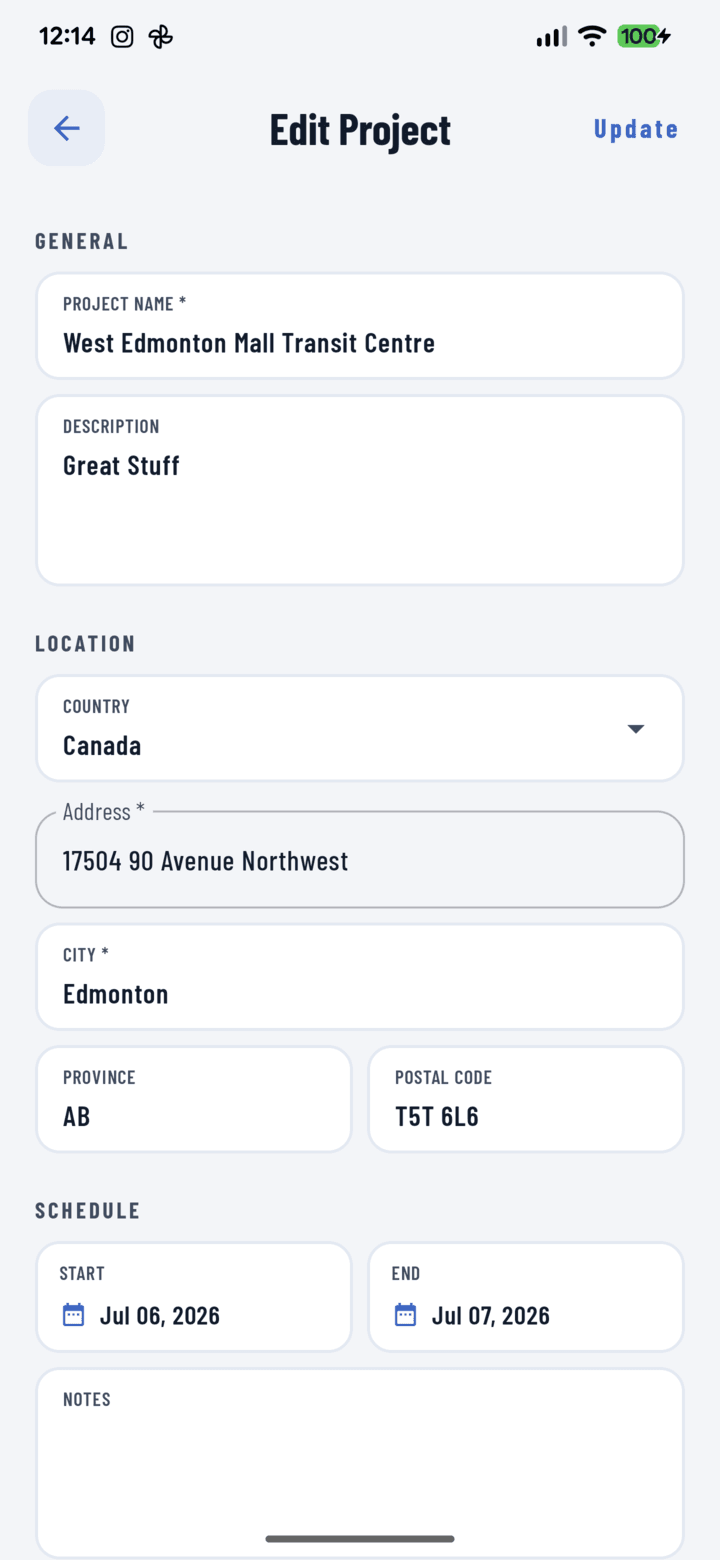
The Edit Project form
Steps
- Open the project from Home or the Projects tab.
- Tap the Details pill under the project header — the details sheet slides up.
- Tap Edit in the action row.
- The project form opens pre-filled. Change what you need:
• General: name, description
• Location: country, address (with autocomplete), city, state/province, ZIP/postal
• Schedule: start/end dates, notes - Tap Save (top bar or bottom button). Validation errors show inline under the fields.
Good to Know
- Edit is disabled while a project is pending offline sync — a job created with no signal must reach the server once before it can be edited, preventing conflicting versions.
- Tags and crew are managed in the details sheet itself, not the edit form — see Adding tags and Assigning crew.
- Changing the address updates the project's map location and Near Me distance.