
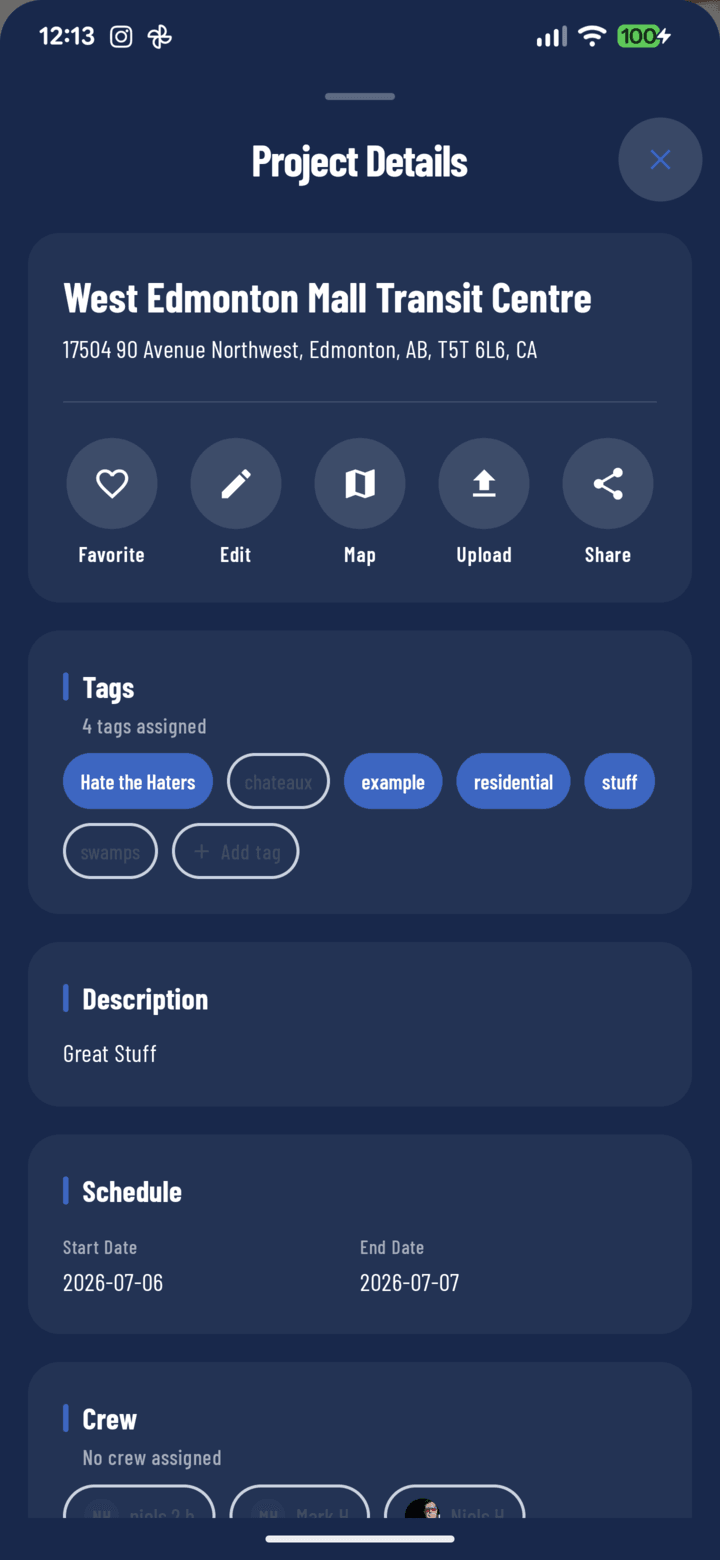
The Tags section of the details sheet
Steps
- Open the project and tap the Details pill to open the details sheet.
- Scroll to the Tags card.
- Toggle existing tags on or off — the company's shared tag vocabulary is listed so everyone picks from the same labels.
- Need a new one? Tap Add new tag, type it, and confirm — CrewBox checks for duplicates so "HVAC" doesn't spawn a second "hvac".
- Tap Update to save.
What Project Tags Do
- Filter Home and the Projects list: open the filter tray, select tags, Apply — "show me every roofing project" is two taps.
- Combine with search and operator filters: "remodel-tagged projects with Maria assigned."
- Active tag filters show as removable chips, so the current view's logic is always visible.
Tagging Strategy That Works
Pick one or two dimensions and stay consistent:
- By trade: roofing, plumbing, electrical
- By phase: bidding, active, punch-list, warranty
- By region/crew: north-metro, crew-A
Project tags organize the portfolio; photo tags organize the media inside each job — both draw from shared vocabularies and both work offline.
Related
- Use the project details sheet
- Tag and organize photos
- FAQ: What can I add tags to?