
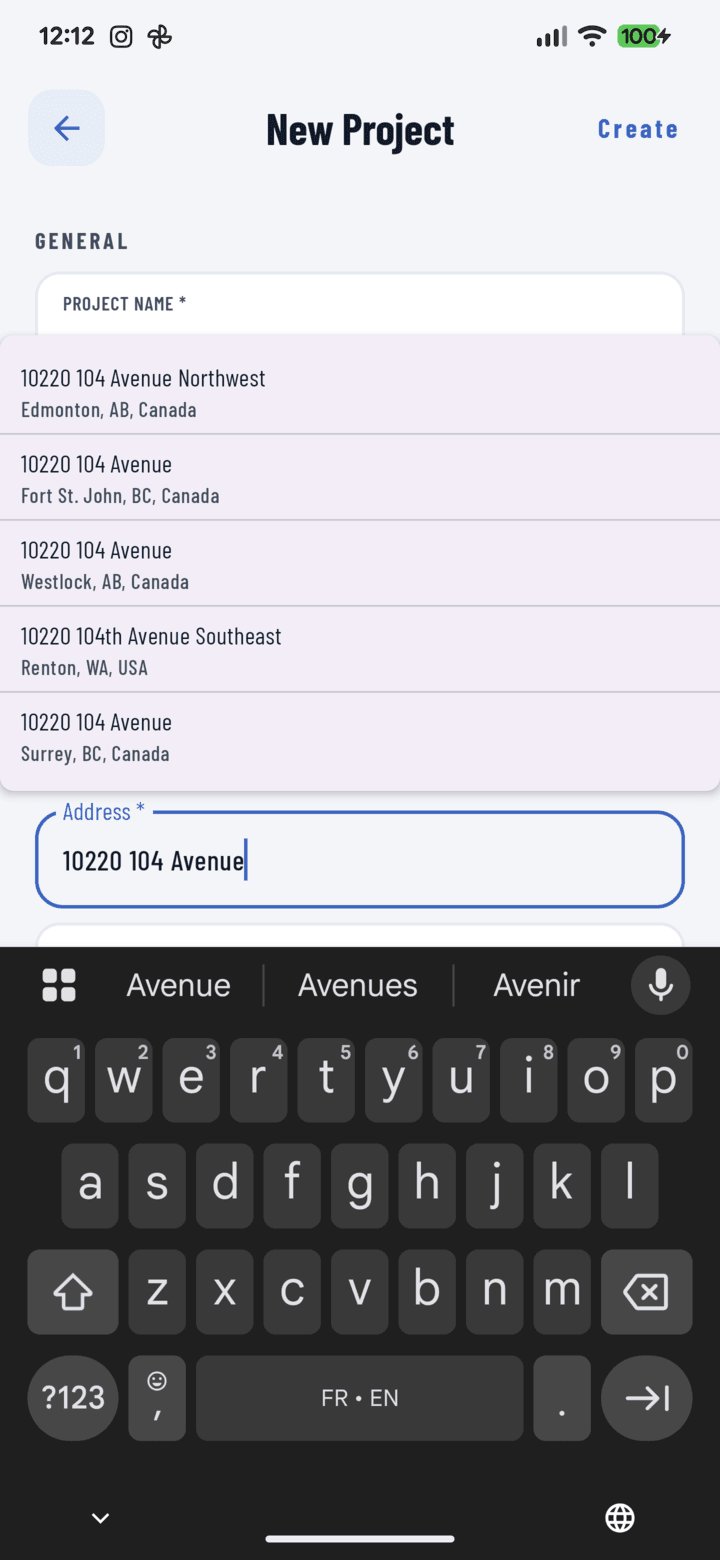
Address autocomplete suggestions
Steps
- Create or edit a project and go to the Location section.
- Pick the country first (United States or Canada) — suggestions are scoped to it, and the form's labels adapt (State/ZIP vs. Province/Postal code).
- Start typing in the address field — after a few characters, verified address suggestions appear below it.
- Tap the right suggestion. CrewBox fills in street, city, state/province, and ZIP/postal code in one tap — and pins the project's GPS coordinates.
- Adjust any field manually if needed, then save.
Why the GPS Pin Matters
Picking a verified address is what powers:
- Near Me sorting — "which of my jobs am I closest to?"
- The Map button in the project details sheet — one tap to turn-by-turn directions.
- Distance labels on project cards.
No Address Yet?
New construction, rural lots, and unaddressed sites are fine — every field stays manually editable. Type what you have (lot number, cross street, city). You can update to the real address later with Edit project.